Как зайти на заблокированный сайт, если он теперь недоступен в России: три способа
Власти страны могут ограничивать доступ к сайтам по всевозможным причинам — нарушение авторских прав, санкции или любая другая причина, объявленная Росконадзором или страной, которая уже со своей стороны может ограничить возможность к просмотру. Но даже к заблокированным сайтам можно получить доступ.
1 способ — прокси-сервер
Самый простой способ продолжать смотреть любимый сайт — через зеркало-копию сайта, которую создают специально на незаблокированном адресе. Однако, зеркала тоже рано или поздно попадают под блокировку. Поэтому удобнее всего пользоваться сервисом, который является посредником. В этом случае есть так называемый прокси-сервер. Обычно этот сервер находится в других странах, где нужный вам сайт доступен всем желающим. То есть, с помощью прокси вы подключаетесь к интернету не из своей страны, а из-за границы. К прокси-серверам можно подключится с помощью специальных приложений на телефоне или компьютере.
Как установить прокси-сервер
Прокси-сервер применяется для всех программных обеспечений, за исключением Windows 7, если настройки заданы только для Internet Explorer. С остальными браузерами таких проблем возникать не должно.
Самый простой способ установить его — использовать тип CGI, который подойдет для всех обычных пользователей. В отличие от других, более сложных типов, здесь не нужно ничего устанавливать. Необходимо лишь зайти на специальный сайт (например, GetProxy), ввести нужный URL и прокси откроет эту страницу в браузере.
Также вы можете скачать программу прокси-сервера прямо на компьютер, чтобы каждый раз не открывать отдельную нужную вкладку сайта. В интернете есть множество ресурсов, с которых можно установить эту программу. Дальше необходимо следовать инструкции:
- Необходимо открыть «пуск» — «параметры» — «сеть и интернет» — «прокси-сервер».
- Зайдите в «настройка прокси вручную» и активируйте опцию «Использовать прокси вручную», нажав правой кнопкой мыши.
- Введите адрес прокси-сервера вручную, после чего нажмите «Сохранить».
Для того чтобы отключить прокси, можно просто отключить функцию «использовать прокси-сервер».
2 способ — VPN
Похожим способом обходит блокировку сайта VPN-сервисы. Но в отличие от прокси они еще и защищают данные и сохраняют анонимность в интернете. Эта технология также позволяет защищать данные от тех, кто пытается узнать чем вы занимаетесь в сети. VPN-сервис может помочь не только восстановить доступ к нужному сайту, но и сохранит вашу приватность и безопасность. Если ваш компьютер не подключен к интернету, то единственный способ узнать чем вы занимаетесь — заглянуть вам «через плечо». Однако как только вы подключаетесь к сети, доступ к вашим данным, в той или иной степени, получает довольно широкий круг лиц — от провайдеров до публичных онлайн-точек, которые могут отслеживать весь трафик, до сайтов, которые собирают информацию о вашем «поведении», чтобы сформировать рекламу.
VPN поможет скрыть ваши данные от тех, с кем вы не хотите ими делиться. Простыми словами, сервис подключает ваш компьютер или телефон через зашифрованный виртуальный тоннель к удаленному серверу, через который вы и выходите в интернет. Находиться этот сервер может где угодно. При этом ваш провайдер может знать, что вы используете VPN, но не то, с какой целью.
Использовать сервис в России не запрещено, но при этом формально существует закон, который позволяет блокировать те VPN-сервисы, которые помогают открыть доступ к запрещенным сайтам в стране. Однако, за все время такой закон пока что не применялся на практике. В любом случае, можно сказать что никаких санкций для обычных пользователей на сегодняшний момент не существует.
У этого способа получения доступа к нужным сайтам есть и минусы — например, это может сказаться на скорости вашего соединения. Кроме того, за действительно безопасный VPN нужно платить, в среднем это 7-8 долларов в месяц для обычных пользователей. Бесплатные сервисы печально известны тем, что могут сливать данные своих интернет-пользователей, в том числе их логины и пароли.
Не могу скачать файлы с WeTransfer — он не работает
WeTransfer недоступен и не работает. Сегодня перестал работать один из самых важных сервисов передачи файлов в мире, поэтому пользователи не могут делиться большими файлами или загружать те, которые хранятся в облаке.
Отключение началось в полдень, и пользователи смогли увидеть сообщение указывает на то, что в данный момент услуга недоступна. Мы не можем скачивать файлы в облаке с теми проблемами, которые это влечет за собой для миллионов пользователей по всему миру. На странице статуса компании они подтверждают, что «наблюдают высокий уровень ошибок API, и в настоящее время мы изучаем проблему», но на данный момент решения нет, и ссылки не работают.

Основная веб-страница работает ( хоть и не с обычной скоростью ), но ошибка появляется в ссылках на скачивание, которые мы отправляем или получаем через e-mail. При получении ссылки на скачивание набора файлов и переходе по ней появляется ошибка, не позволяющая получить эти вложенные файлы. Мы не можем ничего скачать или получить доступ к сохраненному контенту.

Жалобы в социальных сетях
Есть много пользователей, которые пожаловались в социальных сетях на падение по всему миру. Со своей стороны, из официального аккаунта они указывают, что «упорно работают, чтобы попытаться решить ее как можно скорее».
Привет Элизабет! В настоящее время мы испытываем некоторые проблемы с нашей главной страницей, которая не отвечает. Мы прилагаем все усилия, чтобы попытаться исправить это как можно скорее! Вы можете следить за нашей страницей статуса, чтобы быть в курсе. Спасибо за ваше терпение! https://t.co/0BmpxM1s1c
– WeTransfer (@WeTransfer) 7 марта 2022
Многие пользователи жалуются на падение и уверяют, что это « существенная услуга в их работе », к которому они не могут получить доступ. Сообщения на испанском от пользователей, которые жаловаться, что WeTransfer не работает но мы видим, что ошибка во всем мире со многими другими твиттерами, которые приходят в социальную сеть, чтобы спросить о том, что произошло.
WeTransfer не работает .
– Брайан Фонсека ���� (@BryanFonsecaNY) 7 марта 2022
Хорошо, что WeTransfer не работает… Ага.
– Бабс (@_baileva_) 7 марта 2022
Как проверить, работает ли
Если мы хотим проверить, сработало ли это снова или есть временная ошибка, мы можем перейти к WeTransfer.statuspage.io сайт, где компания периодически обновляет все изменения. Отсюда мы можем следить за обновлением последней проверки в режиме реального времени или если она была исправлена.
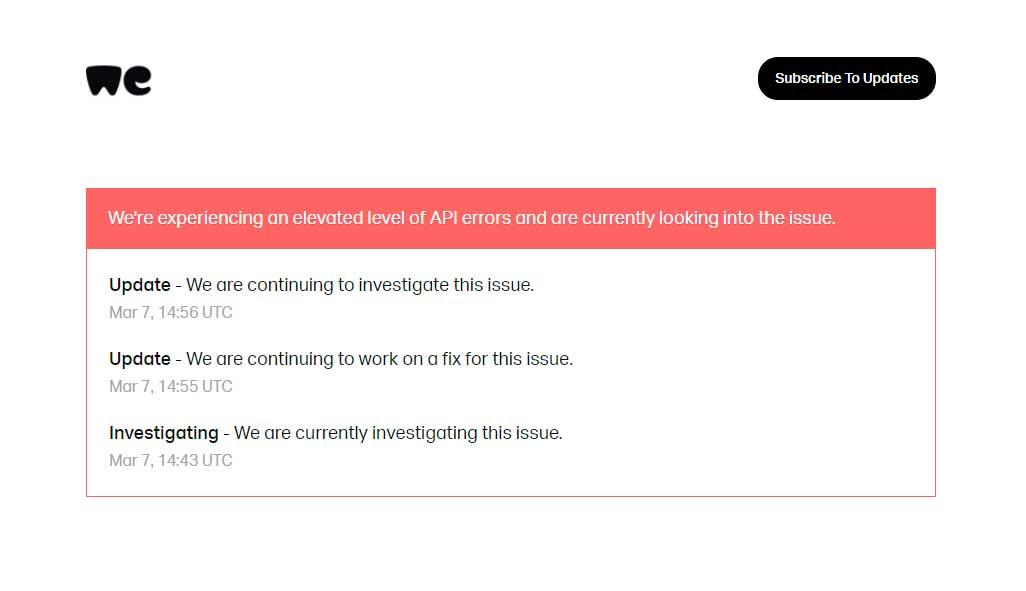
Отсюда мы увидим история отказов за последние 90 дней и сбой сегодня, но и сообщения, которые позволяют нам получать обновления в режиме реального времени. Кроме того, в верхней части вы можете подключиться для получения обновлений, не проверяя его периодически.
WeTransfer app Not Working? Here’s What to Do and Alternatives
Is WeTransfer App not working as it is supposed to? like transferring files online and you are unable to upload or download files? In this post, we are going to explore the reasons why the WeTransfer app is not working for you, What steps you can follow to prevent or fix these problems, and some alternatives when it still not works after trying everything.
Why WeTransfer not working for me?
WeTransfer gives you the ability to transfer large files online whether you want to send them from your PC or Phone.
But even with all these features offered, users may also face some glitches, server outages, issues, and errors while either uploading or downloading files.
Most of the time it may happen due to restrictions that they placed on users but there are some external causes as well.
Here are a few reasons Why the WeTransfer app not working for you –
- You might have exceeded the transfer limit set by We Transfer.
- The transfer that you might try to load could have expired.
- There is an issue with your Internet connection which is preventing you from uploading or downloading a transfer.
- The WeTransfer server might be down right now, interrupting most of the services offered by them.
- If you are using WeTransfer on a Web browser such as Chrome, it could be due to cookie-related issues.
- On your web browser, any other third-party extension might have interfered with the upload or download process.
How to Fix WeTransfer Not Working Errors
WeTransfer is one of the most popular online file transfer solutions for sending large files from one computer online.
It has its own mobile application available for both iOS and Android phones providing the same set of features but from your smartphone instead of web browsers like Google Chrome or firefox.
Being an online tool and top of that file transfer tool for sending large files users of WeTransfer are no strangers to bugs, glitches, or some strange errors during uploading or downloading files.
But what if you are continuously getting errors where WeTransfer is not working for you?
There are some common errors-
- Unable to upload files using your mobile app.
- Can’t upload a specific file using your web browser.
- Can’t download the file from the server.
- You are not able to connect to WeTransfer servers and seeing server errors like – 400 Bad Request, 401 Unauthorized, 403 Forbidden, 404 Not Found, 500 Internal Server Error, 502 Bad Gateway, 503 Service Unavailable, or 504 Gateway Timeout.
- The file that you are downloading or uploading is stuck at a certain point. For example, it stuck at 80% and was unable to proceed any further.
To Fix the WeTransfer app not working errors you have to follow these troubleshooting steps according to your OS or Device –
Fix WeTransfer not working issue on Google Chrome
Google Chrome is the most used and preferred browser for Desktops, Laptops any other kind of PC users all around the world.
Most websites and web applications are designed to keep that fact in mind.
and as a result, website issue is much rarer compared to less popular web browsers.
Despite that fact, some individuals may still encounter difficulties with WeTransfer.
If you experience issues while using WeTransfer on Google Chrome, following these troubleshooting steps can help resolve the problem for you –
Step 1: Pay Attention to the error code
Most of the time error code itself indicates the solution to the error.
Just read the error message carefully. Once you do that you might fix the problem by yourself.
Step 2: Check for WeTransfer Server outage
The WeTransfer server might be down right now at this moment today.
You can ensure all systems are operational or not by heading over to – WeTransfer.Statuspage.Io.
There you will be able to see uptime, server down, and outage issue of the last 90 days.
Be sure to check the Past Incidents section as well since it provides information about Scheduled maintenance and other server status relate information.
Step 3: Clear Chrome Caches, cookies & History
If WeTransfer Website working well and there is no server outage going on today, it could be some cookie-related issue on your browser.
Just head over to the history section clear all cookies, caches, and history, and close Google Chrome.
Open Chrome and visit the site again.
Step 4: Disable Chrome add-ons
Some of the chrome add-ons can cause disruption between the website and the final output it displays on your computer screen.
Fix the WeTransfer app is not working on iPhone or Android Devices
WeTransfer app is available on both the apple app store for your iOS devices and on the Google Play store for your Android smartphones and Tablets.
For Smartphone users it’s recommended to use a mobile application as compared to the web version which is better suited for your Desktop web browsers.
Troubleshooting Wetransfer not responding to errors on phone is very different from resolving a malfunction on your PC.
But don’t worry, as here we will also discuss the troubleshooting steps for fixing WeTransfer issues on your iPhone or Android phone.
Here is a step-by-step process to Fix WeTransfer app not working error –
- First, check that there is no server-side issue going on. You can ensure this by contacting WeTransfer support.
- Reset the WeTransfer mobile app by clearing the app cache and data. Once it is done reboot your phone and try uploading the file again.
- You can also try reinstalling.
- If it still not working you have to contact the WeTransfer support team for more information.
Fix Wetransfer errors on MAC and Windows PC
WeTransfer App is available for PC and mac browsers as well. When it is not working on your PC, here is what you can do-
- For a free account, you can transfer up to 2GB of files and it’ll expire in 1 week. Limited capabilities could be the reason why you are not able to upload or suddenly can’t download files.
- Check for network connection. Obivisiously to either download or upload a file this website requires a constant Internet connection.
- Check for server availability too. There might be server outages, and maintenance issues going on right on.
- Refresh your browser by clearing all cookies, caches, and history. Revisit the site if that does not work you can also try another browser.
- Check the website using another internet connection. Your ISP might be blocking the website.
- Contact support if nothing works. You can contact them via email, Twitter, and some other available support modes online.
Still not working? – Here are the Best WeTransfer alternatives for you
WeTransfer is one of the most popular online file transfer platforms to share large files between different devices, but it doesn’t mean that this is the only File Transfer tool available for you.
There are many great WeTransfer alternatives available, some of them are –
- Massive.iO – One of the best alternatives and much faster it offers you large files of up to 100GB using your free account.
- Jumshare – Another cloud file transfer website that offers you faster file transfer this offers the majority of a paid feature that WeTransfer charges for free to you.
- Send Anywhere – Another great alternative that allows you to send and receive larger files up to 10GB from your computer.
Conclusion
There are some other bugs as well, that cause frustration and provide you no exact clue why you are getting it.
The good news is, we can identify the reason why you are having these WeTransfer errors for the large majority of issues.
And by following the step-by-step guide according to your operating system you will be able to fix WeTransfer App not working problem by yourself.
About Sarvin Batra
Sarvin Batra is the Main Author, Editor at CnbDaily. He is an Expert in Tech especially Related to mobile phones, Android applications and Their uses. You can Connect with him on His Twitter Profile @SarvinBatra
Как обойти блокировку wetransfer
This page was automatically generated by a third-party user's use of Hola services, who is contractually bound to use such services solely for lawful purposes. The target Web sites and related content were selected solely by such user without the involvement or approval of Hola. Hola disclaims all responsibility and liability for the user’s selection and use of content identified herein. Should you wish to contact Hola regarding this user-generated access page, please contact Hola’s DMCA Agent.