4 Methods: Free Convert exFAT to NTFS in Windows 10, 8, 7 Easily
If you want to convert exFAT to NTFS in Windows 11, 10, 8, 7, there are 4 methods you can try. All of them can help you change exFAT to NTFS effectively.
By Emily  / Last Updated May 12, 2023
“Can exFAT be converted to NTFS?”
“I have bought Passport 1TB hard drive with formatted to be exFAT by default. But when I installed it to the Samsung TV. It cannot be read. The operator of the Samsung said that i need to format my HDD to NTFS file system. So how can i convert exFAT to NTFS without losing its data? Any help will be appreciated!”
Compared with FAT32 file system, both NTFS and exFAT have no realistic file-size or partition-size limits. If your storage devices are not compatible with exFAT file system and you don’t want to limited by FAT32, NTFS is a great choice. But how can you convert exFAT to NTFS in Windows 11, 10, 8, 7? Here comes the answer.
How to change exFAT to NTFS in Windows 11/10/8/7?
Although there are many disk formatting tools that allows you to directly convert FAT32 to NTFS without losing any data, there is not any exFAT to NTFS converter available by far. Therefore, to convert exFAT to NTFS in Windows 11/10/8/7 to make the drive readable and usable by some specific devices that only recognize NTFS, you need to format it again. There are 4 methods for that.
To convert exFAT to NTFS without losing data, please back up the partition first. For this, you can make use of the free AOMEI Backupper software.
▌ Method 1. Format exFAT to NTFS through File Explorer
Insert the USB drive to your PC and make sure it is detected, then take the following steps:
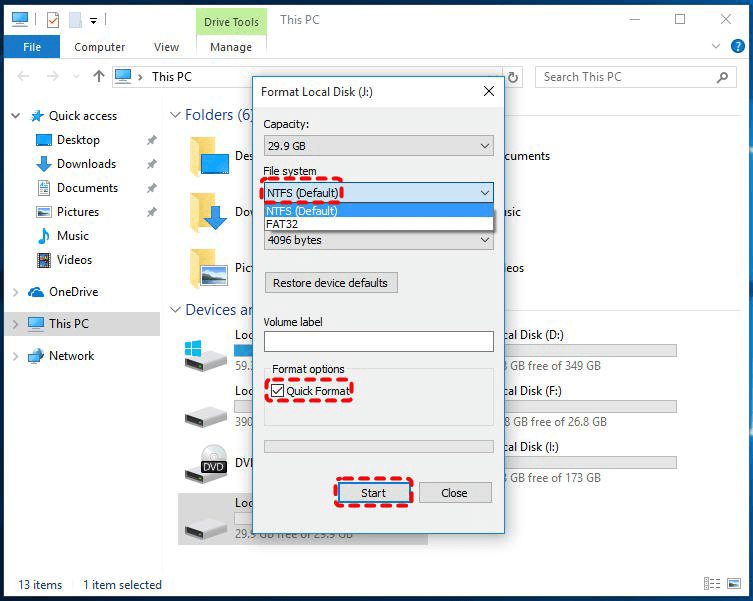
1. Open the File Explorer, right-click the USB drive and select “Format. ” from the drop-down menu.
2. Choose “NTFS” under file system tab, tick “Quick Format” and click “Start” to begin formatting the drive to NTFS.
▌ Method 2. Format exFAT to NTFS using Disk Management
Disk Management works as an excellent Windows native tool to manage the disk, now you can use it to format partition from exFAT to NTFS.
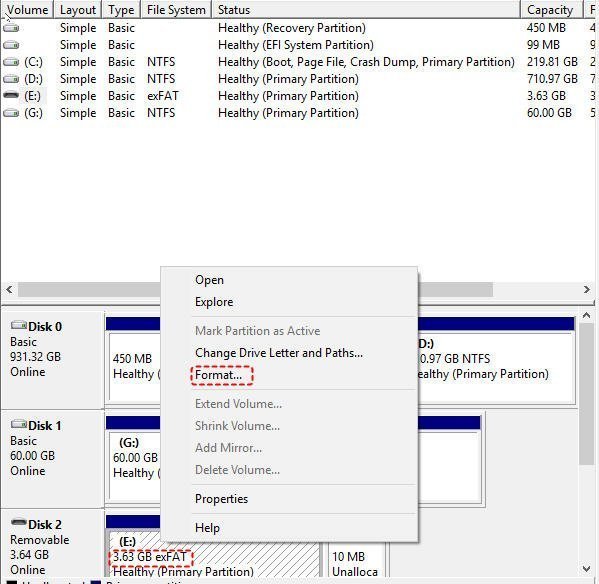
Open Disk Management by right-clicking “This PC”—> Manage —> Disk Management. Then, right-click the USB drive, hit“Format..”, choose “NTFS” from File System option.
▌ Method 3. Convert exFAT to NTFS via command prompt
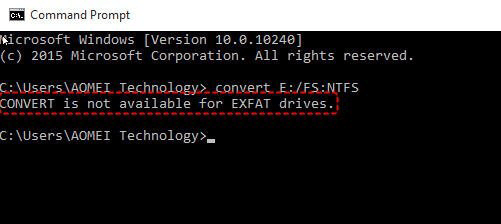
For some computer experts, using command prompt is a quite popular way to convert exFAT to NTFS. But when you open Command Prompt and type: convert E: /FS: NTFS (replace E: with your drive letter), you’ll get an error message saying: CONVERT is not available for EXFAT drives.
In order to change file system from exFAT to NTFS, you have to turn to a different syntax: format. Here is the guide on how to format hard drive using command prompt:
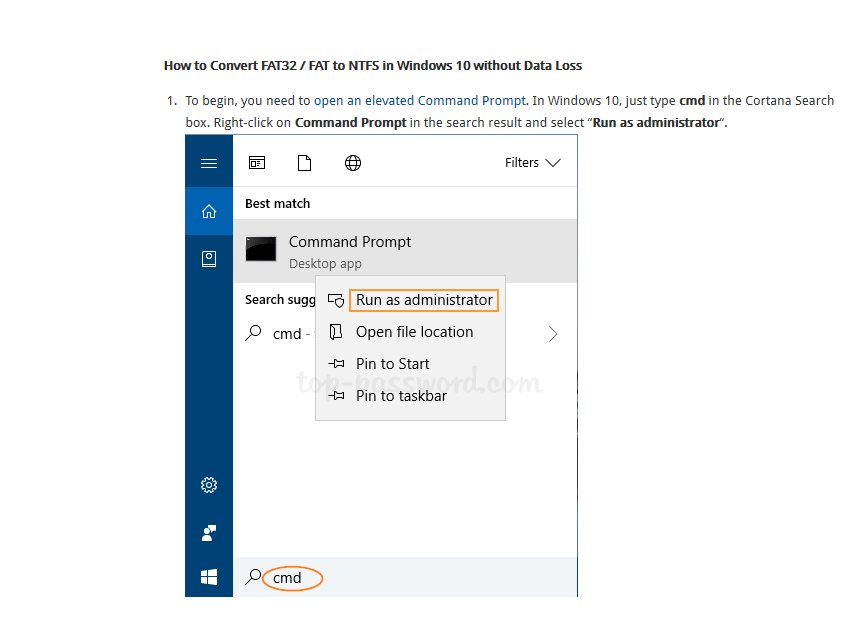
1. Press Windows+R simultaneously to open Run. Input cmd and hit Enter, right click the Command Prompt icon and select Run as administrator.
2. Type: format E: /FS: NTFS (replace E: with your drive letter) and hit Enter.
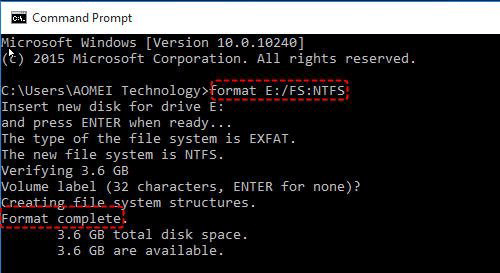
Basically, the formatting process won’t take a long time.
▌ Method 4. Change exFAT to NTFS with free partition manager
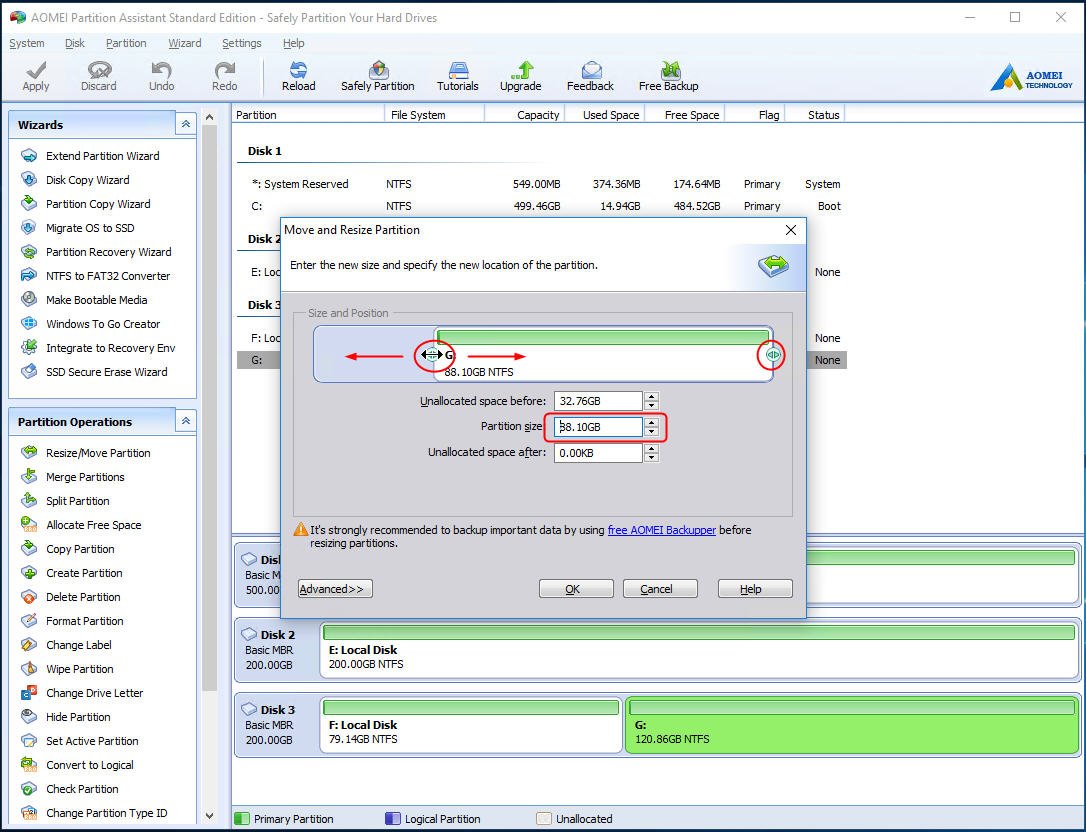
If you fail to convert exFAT to NTFS via the above methods for no reason, you can turn to a free partition manager: AOMEI Partition Assistant Standard. This freeware can force format hard drive successfully even when the disk partition is damaged or write-protected due to a corrupted file system. Apart from formatting drive, it offers many other advanced functions including cloning partition to another drive, creating partition, merging partitions, moving partition and more.
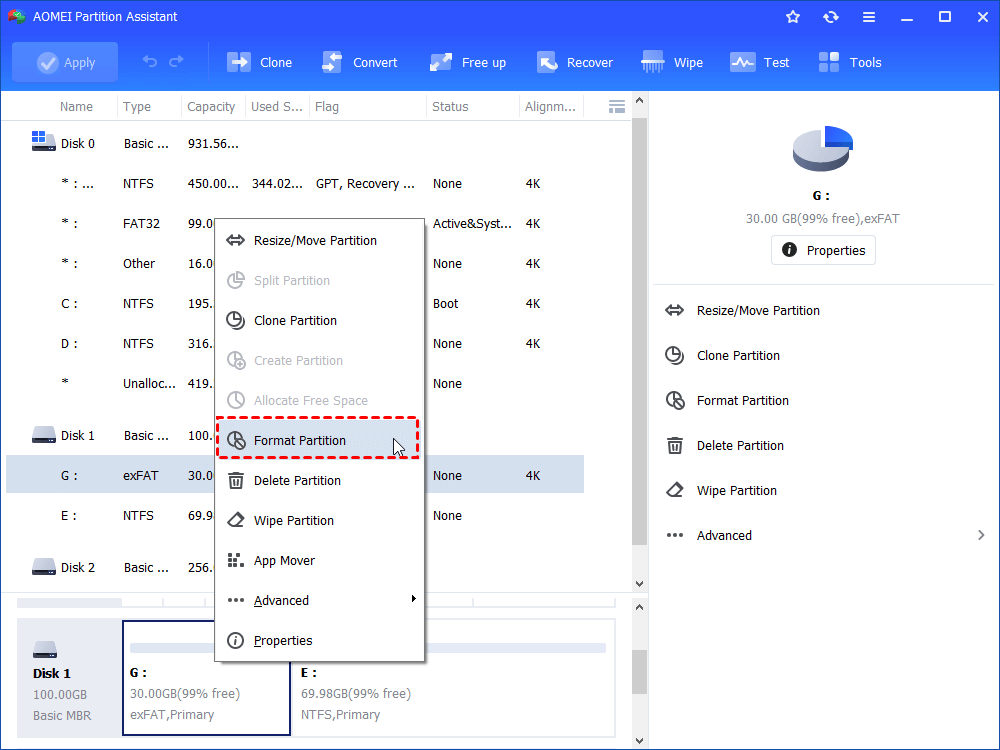
1. Download the free exFAT to NTFS converter software. Then install and run it to enter the main interface, right-click the partition you want to change from exFAT to NTFS. Select «Format Partition» from the given list.
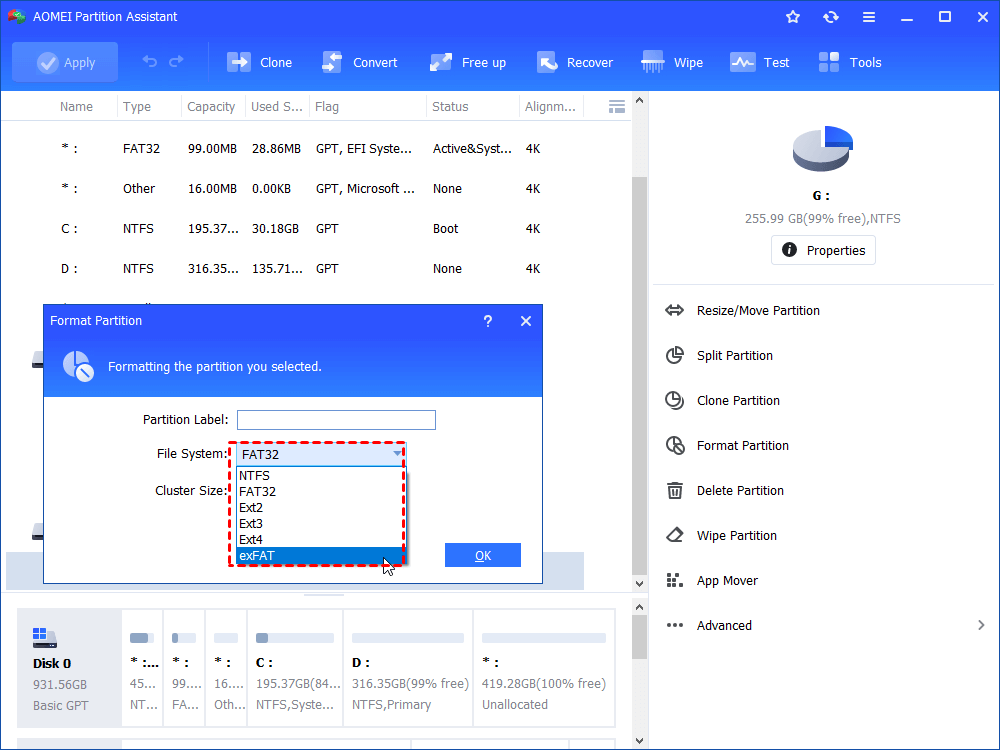
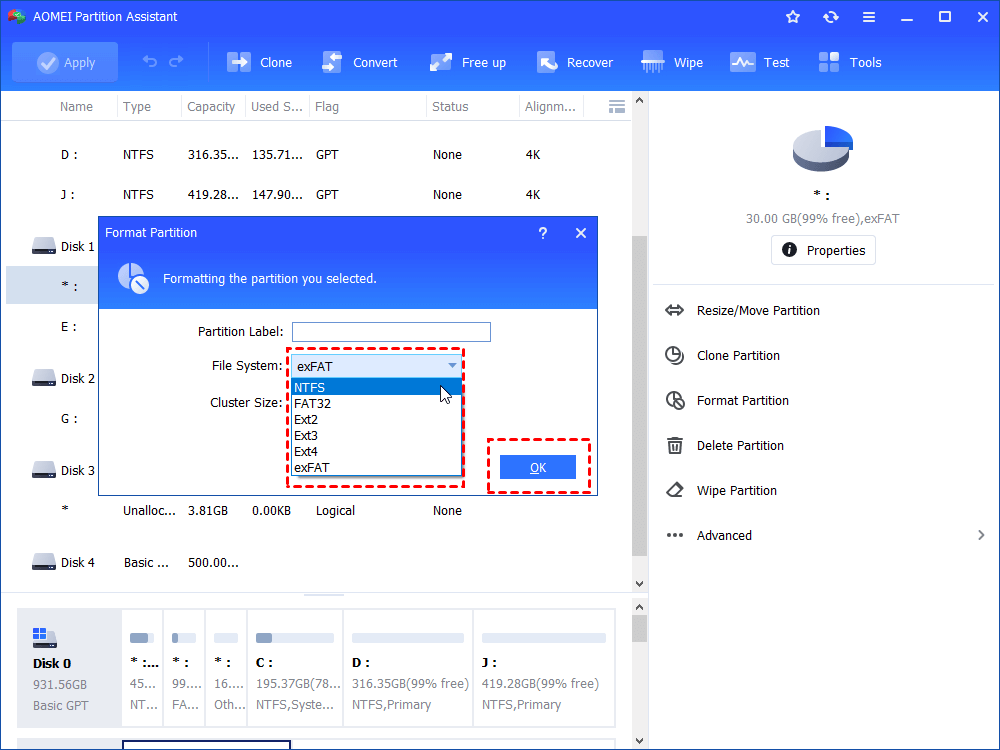
2. In the mini window, choose “NTFS” and click «OK» to continue.
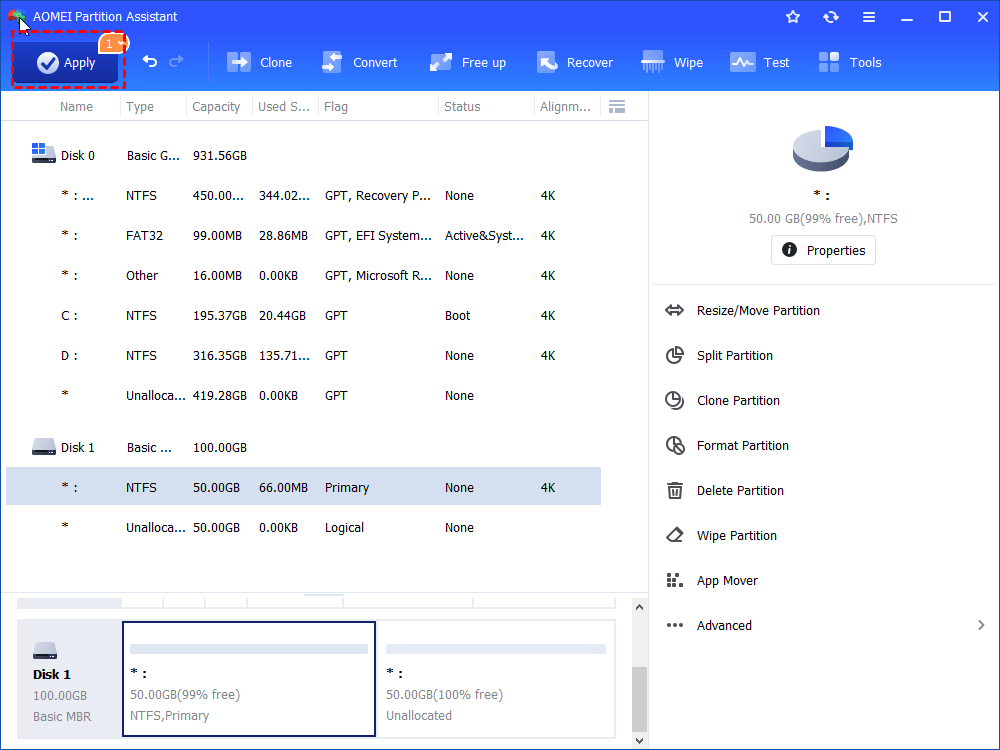
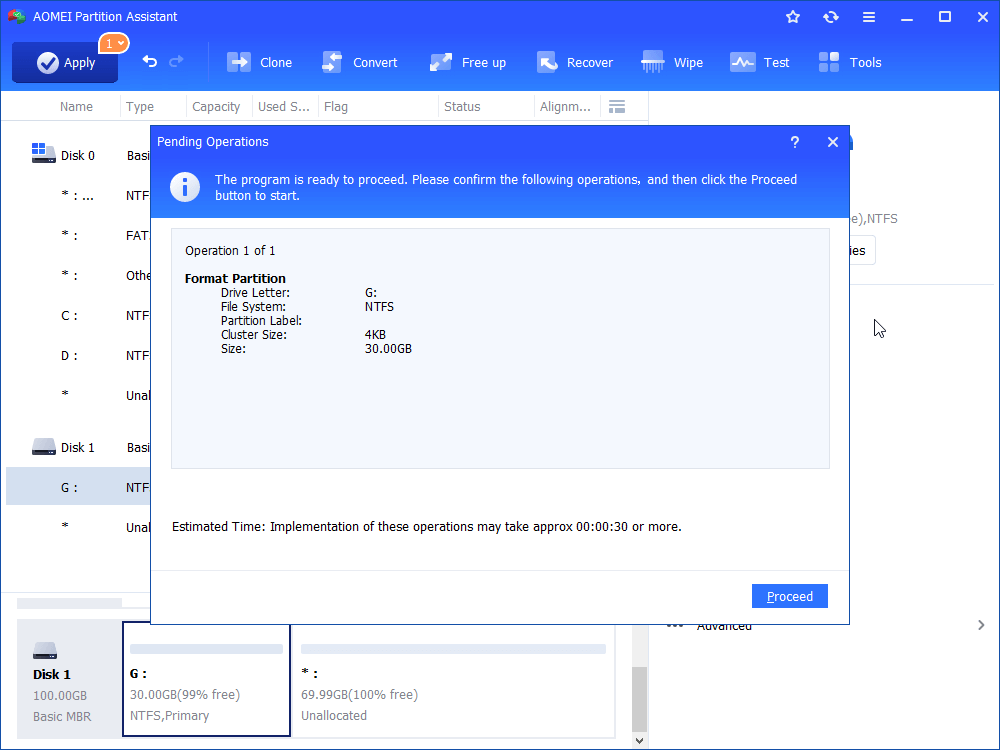
3. Click “Apply” and then «Proceed» in the main interface to complete formatting.
After you finish the conversion from exFAT to NTFS, you can restore the backups you have made before to the hard disk partition now.
Bottom line
Now, I believe you must know how to convert exFAT to NTFS in Windows 11/10/8/7 after walking through the 4 different ways we offer. However, the last one — AOMEI Partition Assistant should be highly recommended since it is powerful enough to deal with many other tough jobs which sometimes cannot be done via Windows native tools like formatting 2B hard drive to FAT32 successfully and deleting hidden partition on USB Drive.
Besides, its Pro edition offers more amazing functions such as migrating OS to SSD, splitting partition, allocating free space from one partition to another, and its Server Edition is developed for users running Windows Server 2003, 2008 (R2), 2012 (R2), 2016, 2019 and SBS 2003, 2008, 2011.
Convert exFAT to NTFS Without Losing Data (Converting File Systems with 3 Methods)
There’re some particular reasons behind people tend to convert exFAT (Extensible File Allocation Table) to NTFS (New Technology File System). The exFAT has limitations in partition size and can’t contain larger-size files. Meanwhile, NTFS doesn’t have such constraints.
When you want to do the conversion without losing data, you must back them up. No matter in which way you’re going to convert it, you’ll end up facing formatting the drive.
So, it’ll be wise to put your necessary documents securely in another secure storage. To do the conversion, you can use one among the Command Prompt, Windows Disk Management, and a partition manager.

Here, we’re providing step-by-step guidelines for converting to NTFS without losing data. So, without any further ado, let’s get into the procedures.
Table of Contents
How Do I Convert exFAT to NTFS Safely and not Losing Any Data?
There’re three effective methods that are eligible to safely accomplish the task. Applying any of them will do the job.
Method 1: Use Command Prompt
This one is simplest as no alternative software is necessary here. You just need to –
Step 1: Connect it to the computer if it’s a removable drive.
Step 2: Search for Command Prompt in the Windows search bar and open it.
Step 3: Type the command format G: /fs:NTFS and execute it to format the drive to NTFS.

NOTE: Here, G represents the drive. Replace it according to your drive.
Method 2: Use Windows Disk Management
This is also an excellent option to complete the conversion successfully without using any other software. To do so –
Step 1: Right-click on This PC.
Step 2: Select Manage.
Step 3: Go to Disk Management under Storage.
Step 4: Now, right-click on the exFAT drive, then select Format.
Step 5: In the Format window, change the File system into NTFS and hit OK. 
Method 3: Use a Partition Manager
In this case, you’ll need alternative software to convert the drive. For instance, you can use AOMEI Partition Assistant.
Step 1: Install and launch the software.
Step 2: Right-click on the exFAT drive and choose Format Partition.
Step 3: Select NTFS in File System. Set the cluster size if needed. 
Step 4: Check all the changes in the initial interface.
Step 5: Finally, click on Apply, then Proceed. 
Pro Tips
There’s another way to do this –
Step 1: First, create a new NTFS partition.
Step 2: Copy all the necessary files from the exFAT drive to this NTFS one.
NOTE: You can try coping files with the FreeFileSync program to ensure the quality of data integrity and properties.
Step 3: Now, convert the remaining drive to NTFS.
Step 4: Resize the new NTFS partition according to your preference.
NOTE: You can defragment NTFS drives to make it faster.
Frequently Asked Questions (FAQs)
Is exFAT better than NTFS?
Actually, the NTFS file system always shows better performance compared to exFAT. NTFS consumes lower system resources and CPU usage. It allows other applications and system operations to have more usage and makes data transfer faster.
Is there any disadvantage of NTFS?
- Without alternative software support, the macOS can’t write to NTFS drives.
- Only Windows 2000 and newer versions are eligible for this format.
- Some media devices like printers, smart TVs, etc don’t support this format.
- Some removable devices don’t support it such as Android phones.
Does the exFAT have any drawbacks?
The main drawback of exFAT is it isn’t capable of keeping a record of the changed files. That’s why exFAT drives often face data corruption issues when there’s any sudden power loss.
Conclusion
So far, these are the effective solutions to convert NTFS from exFAT. Any of them will successfully accomplish the conversion and let you have a compatible NTFS partition. For any further queries, feel free to knock in the comment section.
Как изменить файловую систему на флешке с exfat на ntfs без потери данных
Знаете ли Вы, что тип файловой системы влияет на возможности Вашего флеш-накопителя? Так под FAT32 максимальный размер файла может быть 4 Гб, с файлами большего размера работает только система NTFS. А если флешка имеет формат EXT-2, то она не будет работать в ОС Windows. Поэтому у некоторых пользователей возникает вопрос об изменении файловой системы на флешке.
Как поменять файловую систему на флешке
Это можно сделать несколькими достаточно простыми способами. Некоторые из них заключаются в использовании стандартных средств операционной системы, а для использования других нужно скачивать дополнительное ПО. Но обо все по порядку.
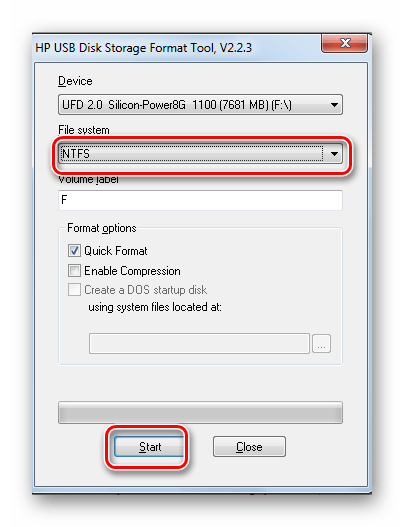
Способ 1: HP USB Disk Storage Format
Это утилита проста в использовании и помогает в случаях, когда обычное форматирование средствами Windows не получается из-за износа флешки.
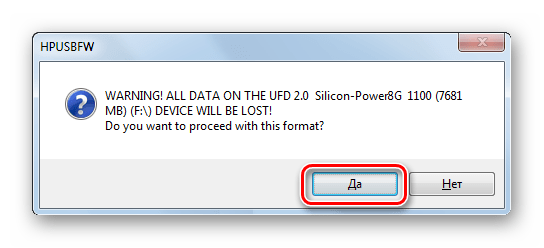
Перед использованием утилиты обязательно сохраните нужную информацию с флеш-накопителя на другое устройство. А дальше сделайте вот что:
- Установите утилиту HP USB Disk Storage Format.
- Подключите Ваш накопитель в USB-разъем компьютера.
- Запустите программу.
Способ 2: Стандартное форматирование
Перед выполнением любых операций выполните простое действие: если накопитель содержит нужную информацию, то скопируйте ее на другой носитель. Дальше сделайте следующее:
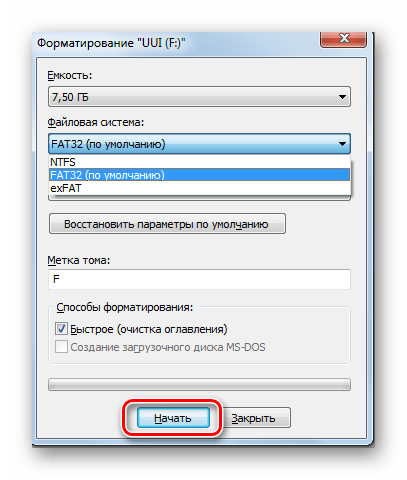
- Откройте папку «Компьютер», кликните правой кнопкой мыши по изображению флешки.
- В открывшемся меню выберете пункт «Форматировать».
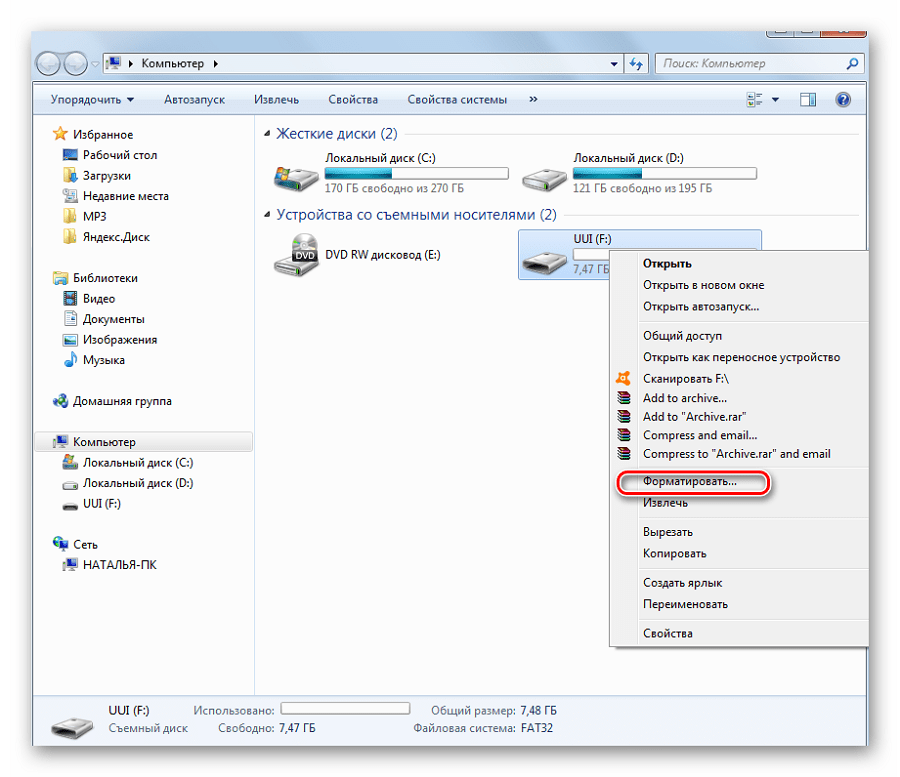

- «Файловая система» – по умолчанию указана файловая система «FAT32», смените ее на нужную;
- «Размер кластера» – значение выставляется автоматически, но при желании можно изменить;
- «Восстановить параметры по умолчанию» – позволяет произвести сброс установленных значений;
- «Метка тома» – символьное название флешки, задавать не обязательно;
- «Быстрая очистка оглавления» – предназначен для быстрого форматирования, рекомендуется использовать этот режим при форматировании съемных носителей информации объемом свыше16 Гб.
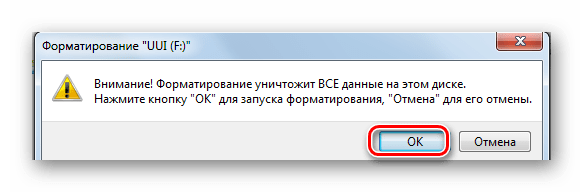
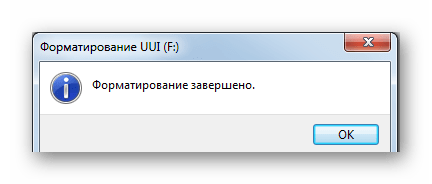
Вот и все, процесс форматирования, а соответственно и изменения файловой системы, закончен!
Способ 3: Утилита Convert
Эта утилита позволяет исправить тип файловой системы на USB-носителе без уничтожения информации. Она входит с состав ОС Windows и вызывается через командную строку.
- Нажмите комбинацию клавиш «Win» + «R».
- Наберите команду cmd.
- В появившейся консоли наберите convert F: /fs:ntfs , где F – буквенное обозначение Вашего накопителя, а fs:ntfs – параметр, обозначающий что будем конвертировать в файловую систему NTFS.
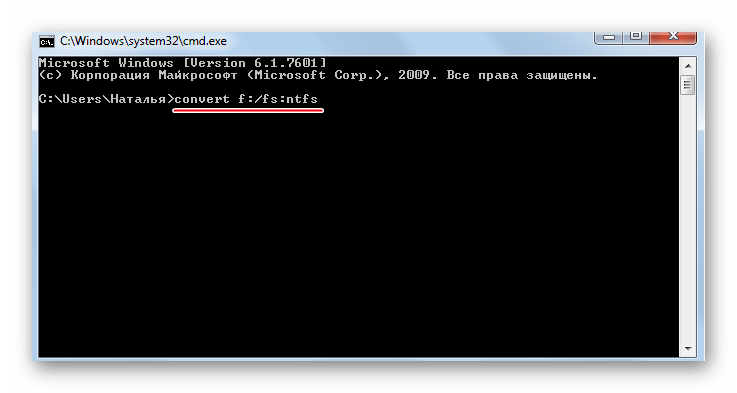
В результате получите флешку с новой файловой системой.
Если нужен обратный процесс: изменить файловую систему из NTFS в FAT32, то нужно набрать в командной строке вот это:
convert g: /fs:ntfs /nosecurity /x
Есть некоторые особенности при работе с этим методом. Речь идет вот о чем:
- Рекомендуется перед преобразованием проверить накопитель на наличие ошибок. Это требуется для избежания ошибок «SRC» при выполнении утилиты.
- Для конвертирования необходимо наличие свободного места на флешке, иначе процесс остановится и появится сообщение «…Недостаточно места на диске для преобразования Сбой преобразования F: не был преобразован в NTFS».
- Если на флешке находились приложения, требующие регистрацию, то вероятнее всего регистрация пропадет.
При преобразовании из NTFS в FAT32 дефрагментация будет трудоемкой.
Разобравшись в файловых системах, вы сможете легко изменять их на флешке. И проблемы, когда пользователь не может скачать фильм в HD-качестве или старое устройство не поддерживает формат современного USB-носителя, будут решены. Успехов в работе!
 Мы рады, что смогли помочь Вам в решении проблемы.
Как изменить файловую систему на флешке с exfat на ntfs без потери данных
Будь в курсе последних новостей из мира гаджетов и технологий

Как конвертировать накопитель в NTFS без потери данных

Большая часть флешек изначально работают с уже устаревшей файловой системой FAT32, которая не позволяет копировать на накопитель файлы весом больше 4 Гб. Разумеется, накопитель можно отформатировать в NTFS, где таких ограничений нет, но вот что делать, если на флешке есть данные? Конечно, их можно перенести на ПК, отформатировать флешку и потом перенести данные обратно, но это достаточно долгий процесс (особенно если объем данных измеряется гигабайтами). Поэтому имеет смысл воспользоваться конвертацией флешки из FAT32 в NTFS — этот процесс идет быстрее и не затрагивает данных.
Для этого подключите флешку к ПК, откройте командную строку и введите команду convert X: /FS:NTFS , где X — буква флешки в проводнике. После этого пойдет процесс конвертации, который займет от нескольких десятков секунд до нескольких минут. И в итоге вы получите флешку с файловой системой NTFS и со всеми вашими данными:
Как поменять exfat на ntfs
Знаете ли Вы, что тип файловой системы влияет на возможности Вашего флеш-накопителя? Так под FAT32 максимальный размер файла может быть 4 Гб, с файлами большего размера работает только система NTFS. А если флешка имеет формат EXT-2, то она не будет работать в ОС Windows. Поэтому у некоторых пользователей возникает вопрос об изменении файловой системы на флешке.
Как поменять файловую систему на флешке
Это можно сделать несколькими достаточно простыми способами. Некоторые из них заключаются в использовании стандартных средств операционной системы, а для использования других нужно скачивать дополнительное ПО. Но обо все по порядку.
Способ 1: HP USB Disk Storage Format
Это утилита проста в использовании и помогает в случаях, когда обычное форматирование средствами Windows не получается из-за износа флешки.
Перед использованием утилиты обязательно сохраните нужную информацию с флеш-накопителя на другое устройство. А дальше сделайте вот что:
- Установите утилиту HP USB Disk Storage Format.
- Подключите Ваш накопитель в USB-разъем компьютера.
- Запустите программу.
Способ 2: Стандартное форматирование
Перед выполнением любых операций выполните простое действие: если накопитель содержит нужную информацию, то скопируйте ее на другой носитель. Дальше сделайте следующее:
- Откройте папку «Компьютер», кликните правой кнопкой мыши по изображению флешки.
- В открывшемся меню выберете пункт «Форматировать».
Вот и все, процесс форматирования, а соответственно и изменения файловой системы, закончен!
Способ 3: Утилита Convert
Эта утилита позволяет исправить тип файловой системы на USB-носителе без уничтожения информации. Она входит с состав ОС Windows и вызывается через командную строку.
- Нажмите комбинацию клавиш «Win» + «R».
- Наберите команду cmd.
- В появившейся консоли наберите convert F: /fs:ntfs , где F – буквенное обозначение Вашего накопителя, а fs:ntfs – параметр, обозначающий что будем конвертировать в файловую систему NTFS.
В результате получите флешку с новой файловой системой.
Если нужен обратный процесс: изменить файловую систему из NTFS в FAT32, то нужно набрать в командной строке вот это:
convert g: /fs:ntfs /nosecurity /x
Есть некоторые особенности при работе с этим методом. Речь идет вот о чем:
- Рекомендуется перед преобразованием проверить накопитель на наличие ошибок. Это требуется для избежания ошибок «SRC» при выполнении утилиты.
- Для конвертирования необходимо наличие свободного места на флешке, иначе процесс остановится и появится сообщение «…Недостаточно места на диске для преобразования Сбой преобразования F: не был преобразован в NTFS».
- Если на флешке находились приложения, требующие регистрацию, то вероятнее всего регистрация пропадет.
При преобразовании из NTFS в FAT32 дефрагментация будет трудоемкой.
Разобравшись в файловых системах, вы сможете легко изменять их на флешке. И проблемы, когда пользователь не может скачать фильм в HD-качестве или старое устройство не поддерживает формат современного USB-носителя, будут решены. Успехов в работе!
Отблагодарите автора, поделитесь статьей в социальных сетях.
Всех читателей приветствую, если вы читаете эту статью то вам должно быть интересно. Как же все-таки можно поменять файловую систему вашего жесткого диска или другого съемного носителя информации (флешка и т. п.) БЕЗ ФОРМАТИРОВАНИЯ? Итак, инструкция довольно проста, и освоить её сможет любой новичок. Ну и давайте приступим!
Шаг первый: Сначала закройте все программы и процессы, которые могут использовать устройство. Так же хочу отметить что это, самый легкий метод поменять файловую систему это – отформатировать устройство. Форматирование подразумевает под собой это удаление всех файлов, довольно длительное удаление всех файлов, подробней можете ознакомиться здесь.

Переходим ко второму шагу.
Шаг второй: Мы же будем использовать полезную команду – convert, которую мало кто знает, но она же, поможет нам изменить файловую систему без форматирования то-есть удаления данных. Сначала, запоминаем символ (букву) диска или флеш-носителя, или же другого устройства, который мы будем изменять в другую файловую систему.
Шаг третий: Открываем консоль клавишами "Win+R" или командой "cmd".

Шаг четвертый: Пишем в командной строке команду: "convert [ ваш диск]: /fs:ntfs, где [ваш диск]" — буква диска, который нужно конвертировать (без кавычек).
Шаг пятый: Если диск используется, то нам предложат его закрыть, после этого с чистой совестью жмем "Y" (Подтвердить).

Шаг шестой: PROFIT! Вы великолепны! Теперь наш диск поменял файловую систему БЕЗ ПОТЕРИ ДАННЫХ! Если же после всей этой процедуры файловая система не поменялась, решить проблему может банальная перезагрузка компьютера.

Обратите внимание, при покупке ноутбука Ленова тут, не только на файловую систему, хотя там наверняка стоит NTFS. Но стоит еще обратить на его основные преимущества.
Ну и что же, всем спасибо за прочтение, надеюсь вам эта статья принесла пользу и понравилась!
Предлагаю в качестве подарка скачать бесплатную книгу: причины зависаний на ПК, восстановление данных, компьютерная сеть через электропроводку и много других интересных фишек.
Еще больше интересных новостей, а главное общение, решений ваших проблем! Добавляйтесь в телеграм – https://t.me/mycompplus
Понравилась полезная статья? Подпишитесь на RSS и получайте больше нужной информации!
| Комментарии |
| Добавить новый | RSS |
| Leo – FAT32/RAID | | 2019-11-17 01:16:40 |
| Leo – на RAID стоит на FAT32, могу ли я без потери файло | | 2019-11-08 15:03:57 |