Voltage Security Network — Quick Start Guide
The Voltage Security Network makes sending encrypted email and encrypting your files easy!
Just install the Voltage software and you will be protecting your information in less than a minute.
You can also use the VSN Web Interface (Zero Download Messenger) to send secure, encrypted email to anyone!
Voltage SecureMail
Voltage SecureFile
Voltage SecureFile for Office 2007
Quickstart Guide for Administrators
Voltage SecureMail
During installation of the Voltage SecureMail Desktop plug-in you will be asked to provide your email address (identity or ID). Choose a password and Voltage will verify your identity by sending you a verification email. Click on the link in the verification email and you are ready to send secure email.
Sending Secure Email
Sending secure email is easy – just compose your message, add recipients and press the ‘Send Secure’ button in Outlook or Outlook Express. The email will be encrypted and sent to recipients with your digital signature incorporated in the message.
Receiving Secure Email
With the Voltage SecureMail software, the decryption process for incoming secure messages happens automatically. Each secure email received also has a digital signature that is displayed with each decrypted message in Outlook Express or viewed by clicking on the highlighted ‘V’ button on the Outlook toolbar.

The digital signature identifies the sender of the email and protects the recipient against spoofing. Any message with an invalid signature will automatically bring up an alert to the end user.
If a key is required to decrypt the message, you may be prompted to authenticate yourself. Once you have authenticated, the secure email will decrypt and reveal the contents.
Replying to Secure Email
To reply to secure email, click on Reply as you normally would to compose the message. 
To reply securely, compose a message and click on the ‘Send Secure’ button. Your reply will automatically be encrypted, signed and sent.
What your Voltage SecureMail recipients will see:
Using the Voltage SecureMail Zero Download Messenger (ZDM)
Based on the breakthrough Identity-Based Encryption technology, Voltage SecureMail makes sending secure email as easy as sending it without encryption. The Zero Download Messenger allows your recipients to receive and reply to secure email without the need to download any software. This option provides assurance to recipients that their secure email can always be read no matter what the email or desktop environment is.
Receiving Secure Email

With each secure email, there is an HTML attachment titled “message_zdm.html” that provides access to the Zero Download Messenger. The encrypted body of the original message as well as any attachments to the original email is contained in this HTML attachment. By opening the HTML attachment and authenticating yourself, you will be able to access your secure email and attachments.
After opening the message, you may be prompted to authenticate yourself by an email sent to the email address that you selected (or asked for a username and password if you have previously registered).

Once you have authenticated, the secure email will decrypt and reveal the contents.
The decrypted secure email will be presented to you in your web browser over a secure SSL connection.
The digital signature identifies the sender of the email and protects the recipient against spoofing. Any message with an invalid signature will show an alert.
Replying to Secure Email
Once you have viewed your secure email, you can reply to the originator, securely. To reply to a secure email via the Zero Download Messenger, click on ‘Reply’ or ‘Reply All’ to compose a reply message.

Compose your message and click on the ‘Send Secure’ button – Your reply will automatically be secured. You may also upload attachments to be sent securely to your recipients.
Voltage SecureFile — Encrypting Files
With Voltage SecureFile you can encrypt any file by simply right-clicking on a file.

You can encrypt to yourself or grant access to additional users.

The encrypted file will be saved as a PDF file in the Voltage SecureFile format. Users without Voltage SecureFile software installed will be directed to a SecureFile Reader download page when they open the document. The SecureFile Reader is a free download for all users.
Encrypting MS Office 2007 documents

Integration with MS Office 2007 allows you to encrypt Office documents with Microsoft’s Information Rights Management feature.

Just add users and select what permissions each will have. Click the Encrypt button and the document will be encrypted and saved in Office 2007 format. Only the owner and the designated users will have access. Users without Voltage software installed will be directed to a SecureFile Reader download page when they open the document. The SecureFile Reader is a free download for all users.
Using Voltage Secur
1 Using Voltage Secur Using Voltage Secur Desktop Based on the breakthrough Identity-Based Encryption technology, Voltage Secur makes sending a secure as easy as sending it without encryption. All that is needed to encrypt and sign an is the recipient s address and a single click of the Send Secure button. The Voltage Secur Desktop software integrates with leading clients such as Outlook and Outlook Express to provide secure messaging without the need to change how you work. 1. Installation During installation of the Voltage Secur Desktop software you will be asked to provide your address (identity or ID). If your enterprise does not automatically authenticate you via your login, you may be asked to authenticate yourself via or a password. Once this is done, you are ready to send Secure Mail. 2. Sending Secure Sending secure is easy just compose your message, add recipients and press the Send Secure button on your client. The will be encrypted and sent to recipients with your digital signature incorporated in the message. Send Secure Buttons Outlook Outlook Express Sending a secure with Microsoft Outlook and Voltage Secur Agent
2 3. Receiving Secure With the Voltage Secur Desktop software, the decryption process for received secure messages happens automatically. Each secure received also has a digital signature that is displayed with each decrypted message or viewed by clicking on the highlighted V button on the client toolbar. The digital signature identifies the sender of the and protects the recipient against spoofing. Any message with an invalid signature will automatically bring up an alert to the end user. If a private key is required to decrypt the message, you may be prompted to authenticate yourself. Once you have authenticated, the secure will decrypt and reveal the contents. 4. Replying to Secure To reply to secure , click on reply as you normally would to compose the message.
3 To reply securely, compose a message and click on the Send Secure button Your reply will automatically be encrypted, signed and sent.
4 Using Voltage Secur Using the Voltage Secur Zero Download Messenger (ZDM) Based on the breakthrough Identity-Based Encryption technology, Voltage Secur makes sending secure as easy as sending it without encryption. The Zero Download Messenger allows you to receive, reply and initiate secure without the need to download any software. This option provides the assurance to recipients that their secure can always be read no matter what the or desktop environment is. 1. Receiving Secure Open the attachment titled message_zdm.html to access your secure . Click the Read Message button. With each secure , there is an HTML attachment titled message_zdm.html that provides access to the Zero Download Messenger. The encrypted body of the original message as well as any attachments to the original is contained in this HTML attachment. By opening the HTML attachment and authenticating yourself, you will be able to access your secure and attachments.
5 After opening the message, you may be prompted to authenticate yourself by an sent to the address that you selected (or asked for a username and password if you have previously registered). Once you have authenticated, the secure will decrypt and reveal the contents. The decrypted secure will be presented to you with your web browser over a secure SSL connection. The digital signature identifies the sender of the and protects the recipient against spoofing. Any message with an invalid signature will bring up an alert to the end user.
6 2. Replying to Secure Once you have viewed your secure , you can reply to the originator, securely. To reply to a secure via the Zero Download Messenger, click on Reply or Reply All to compose a reply message. To reply back securely, click on the Reply, Reply All or Forward button a new compose page will be presented. Compose your message and click on the Send Secure button Your reply will automatically be secured. If permitted, you may also upload attachments to be sent securely to your recipients.
7 3. Initiating Secure The Zero Download Messenger also allows you to initiate secure without the need to download any software. The enterprise that is providing your secure service can provide a link on their website where you can compose new secure . When you visit the login URL, you are prompted to enter your address (e.g. you@example.com). After entering your address, you will be prompted to authenticate. Once you have authenticated, you will be presented with a compose page to create your secure . If permitted, you may also upload attachments to be sent securely to your recipients.
Reading an email sent with Voltage SecureMail. Using the Voltage SecureMail Zero Download Messenger (ZDM)
 Reading an email sent with Voltage SecureMail Using the Voltage SecureMail Zero Download Messenger (ZDM) SecureMail is an email protection service developed by Voltage Security, Inc. that provides email
Texas Medicaid & Healthcare Partnership (TMHP)
 Texas Medicaid & Healthcare Partnership (TMHP) E-Mail Encryption Basics/Help Guide Texas Medicaid & Healthcare Partnership Page 1 of 16 Print Date: 2/24/2009 Table of Contents LTC Online Portal User 1.0
ADP Secure Email Client User Guide
 ADP Secure Email Client User Guide A Guide to Exchanging Secure Emails Using the Voltage SecureMail System Version 1.0 July 2008 2008 ADP, Inc. Copyright Information ADP provides this publication as is
End-User Reference Guide
 Guide Websense Advanced Email Encryption v7.6 Websense Advanced Email Encryption Copyright 1996-2011 Websense, Inc. All rights reserved. This document contains proprietary and confidential information
End-User Reference Guide
 Guide Websense Advanced Email Encryption v7.6 Contents Receiving secure email. 1 How do I open a secure message. 1 How do I register for
End-User Reference Guide
 Guide Websense Advanced Email Encryption v7.x Websense Advanced Email Encryption Copyright 1996-2014 Websense, Inc. All rights reserved. This document contains proprietary and confidential information
ADP Secure Email Client User Guide
 ADP Secure Email Client User Guide A Guide to Exchanging Secure Emails Using the Voltage SecureMail System Version 1.6 August 2014 ADP Secure Email Client User Guide August 2014 Copyright Information ADP
P309 — Proofpoint Encryption — Decrypting Secure Messages Business systems
 Procedure P309 — Proofpoint Encryption — Decrypting Secure Messages Business systems P309 — Page: Page 1 of 12 Date of Release: 23 February 2011 Status: Final Document Reference: Title: P309 Release Number:
Using etoken for Securing E-mails Using Outlook and Outlook Express
 Using etoken for Securing E-mails Using Outlook and Outlook Express Lesson 15 April 2004 etoken Certification Course Securing Email Using Certificates Unprotected emails can be easily read and/or altered
For all other applications, including new applications, please visit www.apvma.gov.au
 This content only applies to transition applications that were received before 1 July 2014. The content will be relevant for these applications until 30 June 2015. For all other applications, including
MessageGuard 3.0 User Guide
 MessageGuard 3.0 User Guide Table of Contents Introduction. 3 Installing the MessageGuard Desktop Client. 3 Sending Secure E-mail Messages with the Desktop Client. 11 Reading Secure E-mail Messages
E-mail Encryption. How do I send my e-mail encryption key?
 E-mail Encryption SecurenCrypt e-mail encryption was designed to work as a plug-in with Microsoft Outlook. The following instructions are geared toward users encrypting e-mail with Outlook. However, throughout
Secure Email Frequently Asked Questions
 Secure Email Frequently Asked Questions Frequently Asked Questions Contents General Secure Email Questions and Answers Forced TLS Questions and Answers SecureMail Questions and Answers Glossary Support
CISCO SECURE MAIL. External User Guide. 1/15/15 Samson V.
 1/15/15 Samson V. 1. These instructions are for users who reside outside the University of Colorado Denver that receive encrypted emails from faculty or staff of UC Denver. As a part of our HIPAA compliance
Guidance for using the East Sussex County Council Secure Email system
 Guidance for using the East Sussex County Council Secure Email system ESCC February 2010 Using the ESCC SecureMail system The ESCC SecureMail system is an email system that provides a high level of security
How to Send an Encrypted Email via KDADS’ Outlook Client or Outlook Web Application
 How to Send an Encrypted Email via KDADS’ Outlook Client or Outlook Web Application In order to ensure Personal Health Information (PHI) and Personally Identifiable Information (PII) is protected, KDADS
Using Entrust certificates with Microsoft Office and Windows
 Entrust Managed Services PKI Using Entrust certificates with Microsoft Office and Windows Document issue: 1.0 Date of issue: May 2009 Copyright 2009 Entrust. All rights reserved. Entrust is a trademark
Email Encryption at the University of Miami Miller School of Medicine and University of Miami Health System
 Email Encryption at the University of Miami Miller School of Medicine and University of Miami Health System Introduction Email encryption is used to protect sensitive content that is sent from the UM Miller
Receiving Secure Emails
 Receiving Secure Emails This document explains how you can access emails that have been sent to you through CyberArk s Secure Email system in several simple steps. When you receive a secure email, you
Prerequisite. Getting Started. Email Signing and Encryption using Microsoft outlook 2007
 Email Signing and Encryption using Microsoft outlook 2007 Prerequisite a. The user s email account has been added and correctly configured into Microsoft outlook. b. The user has an authentication certificate.
Prerequisite. Getting Started. Email Signing and Encryption using Microsoft outlook 2010
 Email Signing and Encryption using Microsoft outlook 2010 Prerequisite a. The user s email account has been added and correctly configured into Microsoft outlook. b. The user has an authentication certificate.
Instructions for Microsoft Outlook 2003
 ElkhartNet, Inc. is dedicated to providing our email customers with excellent service and support. In a targeted effort to reduce SPAM and to provide more secure and faster email, we are changing our outgoing
Orbital ATK Secure Email: Receiving Encrypted Messages. Why Orbital ATK Secure Email? Initial Email: Orbital ATK Secure Email Notification
 Orbital ATK Secure Email: Receiving Encrypted Messages This document is intended for Orbital ATK Employees, Partners & Clients as an introduction & instructional user guide for Orbital ATK Secure Email.
EJGH Email Encryption User Tip Sheet 10-11-2013 1 of 8
 EJGH Email Encryption User Tip Sheet 10-11-2013 1 of 8 External Users Decrypting Secure Messages The following sections describe how users external to EJGH receive and decrypt secure messages. Reading
SecureMail User Guide
 SecureMail User Guide Contents Secure email at HSBC. 2 About SecureMail. 2 Receiving a secure email sent via SecureMail 3 Opening a secure email sent via SecureMail. 4 Using SecureMail to reply to
Bridging People and Process. Bridging People and Process. Bridging People and Process. Bridging People and Process
 USER MANUAL DATAMOTION SECUREMAIL SERVER Bridging People and Process APPLICATION VERSION 1.1 Bridging People and Process Bridging People and Process Bridging People and Process Published By: DataMotion,
Personal Secure Email Certificate
 Entrust Certificate Services Personal Secure Email Certificate Enrollment Guide Date of Issue: October 2010 Copyright 2010 Entrust. All rights reserved. Entrust is a trademark or a registered trademark
Secure Email User Guide
 Secure Email User Guide Contents Secure email at HSBC. 2 About SecureMail. 2 Receiving a secure email sent via SecureMail 3 Opening a secure email sent via SecureMail. 4 Resetting your SecureMail password..
Configuring Outlook to send mail via your Exchange mailbox using an alternative email address
 Configuring Outlook to send mail via your Exchange mailbox using an alternative email address This document is based on Exchange mailboxes and using Outlook 2007. The principles outlined are equally valid
Instructions for Secure Email Cisco Registered Envelope Service (CRES)
 Instructions for Secure Email Cisco Registered Envelope Service (CRES) Please read the official Cisco Guidance on the Cisco Registered Envelope Service And Frequently Asked Questions A courtesy attempt
Unipass Securemail Client. User Guide v1.2
 Unipass Securemail Client User Guide v1.2 This document provides a step by step illustrated user guide for the Unipass Securemail desktop software client / plug-in. UIdP Project Team 28/06/2015 Contents
How to set up Outlook Anywhere on your home system
 How to set up Outlook Anywhere on your home system The Outlook Anywhere feature for Microsoft Exchange Server 2007 allows Microsoft Office Outlook 2007 and Outlook 2003 users to connect to their Outlook
Vanguard Secure E-Mail Service (VSES) User Guide
 Vanguard Secure E-Mail Service (VSES) User Guide Information Security Department January 8, 2013 Contents Guide for Users of Secure E-Mail From Vanguard 1 View Secure E-Mail 1 New Registration 3 Compose
Outlook Web Access Tipsheets
 You can use a Web browser to access your Outlook mailbox from any computer with an Internet connection. You can use Outlook Web Access with Microsoft Internet Explorer, Mozilla Firefox and many other browsers.
Adding Digital Signature and Encryption in Outlook
 Adding Digital Signature and Encryption in Outlook Using Outlook, the email messages can be signed and encrypted by a digital certificate. To digitally sign a message in Outlook some conditions must be
Page 1 Rev Date: February 2010. User Manual for Encrypted Email Services
 Page 1 User Manual for Encrypted Email Services Instructions for Using Encrypted Email Services This document is being provided to assist you in opening encrypted emails sent from Century Bank. The following
Secure Email A Guide for Users
 Secure Email A Guide for Users October 14, 2013 10/13 TABLE OF CONTENTS USING THE SYSTEM FOR THE FIRST TIME. 3 EMAIL NOTIFICATION OF SECURE INFORMATION. 3 GETTING REGISTERED ON THE SYSTEM. 4 ACCOUNT
wce Outlook Contact Manager Documentation
 wce Outlook Contact Manager Documentation Current version: 5.3.0 as of 12/1/2007 Website: http://www.crmbusinessapps.com Client download: http://www.crmbusinessapps.com/downloads/wce/wceoutlookcm.msi Server
SECURE E-MAIL COMMUNICATIONS PLAN Updated August 25, 2011
 SECURE E-MAIL COMMUNICATIONS PLAN Updated August 25, 2011 Introduction In October, 2008, the Division of Welfare and Supportive Services (DWSS) announced the introduction of secure e-mail through ASM 17-08.
Accessing the Media General SSL VPN
 Launching Applications and Mapping Drives Remote Desktop Outlook Launching Web Applications Full Access VPN Note: To access the Media General VPN, anti-virus software must be installed and running on your
Enrollment Process for Android Devices
 1 Enrollment Process for Android Devices Introduction. 2 Pre-requisites. 2 Via SMS. 2 Via Email. 11 Self Service. 19 2 Introduction: This is a brief guide to enrolling an android device
ACS Email Encryption Recipient Guide
 ACS Email Encryption Recipient Guide ACS ENCRYPTION SERVICES / TRAINING AND AWARENESS ACS Email Encryption Recipient Guide Email Encryption Recipient Guide ACS A Xerox Company 2828 North Haskell Dallas,
SECURE EMAIL USER GUIDE OUTLOOK 2000
 WELLS FARGO AUTHENTICATION SERVICES DATED: MAY 2003 TABLE OF CONTENTS GENERAL INFORMATION. 1 INSTALLING THE WELLS FARGO ROOT CERTIFICATE CHAIN.. 2 INSTALLING THE CERTIFICATES INTO IE. 3 SETTING UP
Using Your New Webmail
 1 Using Your New Webmail Contents Compose a New Message. 3 Add an Attachment. 5 Insert a Hyperlink. 6 Forward an Email. 7 Search Email. 8 Download Email from an existing POP3 Account. 9 Move
Can I manually trigger secure e-mail to encrypt a message that does not contain PI or other sensitive information? Yes, by use of the word TID.
 How does Secure E-mail work? When an e-mail is initiated or responded to the secure e-mail algorithm will determine if the e-mail needs to be encrypted based on predefined criteria. If it meets the predefined
Background Information
 User Guide 1 Background Information ********************************Disclaimer******************************************** This is a government system intended for official use only. Using this system
How to install and use the File Sharing Outlook Plugin
 How to install and use the File Sharing Outlook Plugin Thank you for purchasing Green House Data File Sharing. This guide will show you how to install and configure the Outlook Plugin on your desktop.
1. Navigate to Control Panel and click on User Accounts and Family Safety. 2. Click on User Accounts
 This document will guide you through setting up your outgoing server (SMTP) Microsoft Outlook and Windows Live Mail. There is also a section below that guides you through the manual configuration of your
Registering at the Securemail site
 Registering at the Securemail site Before using the Secure Mail service for the first time, you must perform a one-time service registration by completing the following steps. 1. When a Secure Mail is
3. On the E-mail Accounts wizard window, select Add a new e-mail account, and then click Next.
 To Set Up Your E-mail Account in Microsoft Outlook 2003 1. Open Microsoft Outlook 03 3. On the E-mail Accounts wizard window, select Add a new e-mail account, and then click Next. 4. For your server type,
Bank of Hawaii Protecting Confidential Email. What’s in this User Guide
 1 Bank of Hawaii Protecting Confidential Email Email is commonly used to transmit confidential information such as operational data, legal documents, or financial information. By default emails are sent
BlackBerry Internet Service Using the Browser on Your BlackBerry Smartphone Version: 2.8
 BlackBerry Internet Service Using the Browser on Your BlackBerry Smartphone Version: 2.8 User Guide SWDT653811-793266-0827104650-001 Contents Getting started. 3 About messaging service plans for BlackBerry
Jumble for Microsoft Outlook
 Jumble for Microsoft Outlook Jumble is a zero knowledge, end- to- end email encryption solution that integrates with existing email platforms. Jumble integrates at the email client level and removes the
To open and/or save an attachment:
 Secure Email Granite Group Benefits, LLC is fully committed to providing our clients with the safest and most secure environment for exchanging sensitive and/or private information via email. In order
Honeywell Secure Email External User Guide August 2013
 Honeywell Secure Email External User Guide August 2013 PAGE: 1 of 14 Chapter No Table of Content Page No 1 Introduction 3 2 Using the Honeywell Secure Email Interface 3 3 Sending an Encrypted Email to
Receiving Secure Email from Citi For External Customers and Business Partners
 Citi Secure Email Program Receiving Secure Email from Citi For External Customers and Business Partners Protecting the privacy and security of client information is a top priority at Citi. Citi s Secure
Unipass Securemail Client FAQ Document v1.1. This document a summary of some of the most common questions asked about the Unipass Securemail client.
 Unipass Securemail Client FAQ Document v1.1 This document a summary of some of the most common questions asked about the Unipass Securemail client. UIdP Project Team 28/06/2014 Contents Section 1 — Unipass
Accessing your e-mail using a web browser
 Accessing your e-mail using a web browser The web address for the PTS e-mail site is. http://mailserver.pts.edu Type that web address in the address bar and press . The screen below appears Next,
Proofpoint Email Encryption Manual. 18 July 2014
 Proofpoint Email Encryption Manual 18 July 2014 Table of Contents Table of Contents. 2 Why did I Receive an Encrypted Email. 3 Registering to Open an Encrypted Email for the First Time. 3 Opening
1. Open the preferences screen by opening the Mail menu and selecting Preferences.
 Using TLS encryption with OS X Mail This guide assumes that you have already created an account in Mail. If you have not, you can use the new account wizard. The new account wizard is in the Accounts window
Steps to Opening Your First Password-Protected Envelope
 This section provides step-by-step instructions for opening a password-protected Registered Envelope for the first time. The steps demonstrate a typical scenario for a first-time recipient. Some of the
PaperClip. em4 Cloud Client. Manual Setup Guide
 PaperClip em4 Cloud Client Manual Setup Guide Copyright Information Copyright 2014, PaperClip Inc. — The PaperClip32 product name and PaperClip Logo are registered trademarks of PaperClip Inc. All brand
GroupWise Web Access 8.0
 GroupWise Web Access 8.0 How to check your email via the Internet For More Information, please contact: Administrative Office of the Courts Technology Help Desk (615) 532 9503 or (800) 448-7980 Table of
Secure Email Client User Guide Receiving Secure Email from Mercantile Bank
 Receiving Secure Email from Contents This document provides a brief, end-user overview of the Secure Email system which has been implemented by. Why Secure Email? When someone sends you an email, the email
Email Encryption Procedures
 Email Encryption Procedures Contents: I. Compose an Encrypted Message II. What Your Recipients Will Receive a. Registering a NewAccount b. Logging into a Created Account c. Reading and Replying III. Reading
MSGCU SECURE MESSAGE CENTER
 MSGCU SECURE MESSAGE CENTER Welcome to the MSGCU Secure Message Center. Email is convenient, but is it secure? Before reaching the intended recipient, email travels across a variety of public servers and
Emailing from The E2 Shop System EMail address Server Name Server Port, Encryption Protocol, Encryption Type, SMTP User ID SMTP Password
 Emailing from The E2 Shop System With recent releases of E2SS (at least 7.2.7.23), we will be allowing two protocols for EMail delivery. A new protocol for EMail delivery Simple Mail Transfer Protocol
User Guide. The AMF’s File Transfer Service (FTS)
 User Guide The AMF’s File Transfer Service (FTS) TABLE OF CONTENTS 1 INTENDED USERS. 3 2 SCOPE OF GUIDE. 3 3 BACKGROUND. 3 4 REQUIRED CONFIGURATION. 3 5 CONTACT INFORMATION FOR SUPPORT. 4 6 SECURITY.
NICCA User Guide for digitally signing email Using Digital Signature Certificate (DSC) in Outlook Express
 NICCA User Guide for digitally signing email Using Digital Signature Certificate (DSC) in Outlook Express 1. DESCRIPTION This guide explains the procedure for using the NICCA issued digital certificate
Use your UNNCNetID and password to log in. The first time you login to the system, you may receive the following screen:
 (Secure FTP to/from Outside (non-unmc Parties) Information Technology Services July 2012 Contact the ITS Helpdesk at 402-559-7700 or helpdesk@unmc.edu with questions. Personnel at UNMC occasionally need
Nationstar Mortgage Secure Email Client User Guide
 Nationstar Mortgage Secure Email Client User Guide A Guide to Exchanging Secure Emails Using the Nationstar Mortgage Secure Email Message Center Version 1.0 July 2010 1 Nationstar Public Copyright Information
Bank of Hawaii Protecting Confidential Email
 1 Bank of Hawaii Protecting Confidential Email Email is commonly used to transmit confidential information such as operational data, legal documents, or financial information. By default emails are sent
Secure Global Desktop (SGD)
 Secure Global Desktop (SGD) Table of Contents Checking your Java Version. 3 Preparing Your Desktop Computer. 3 Accessing SGD. 5 Logging into SGD. 6 Using SGD to Access Your Desktop. 7 Using SGD to
Using TLS Encryption with Microsoft Outlook 2007
 Using TLS Encryption with Microsoft Outlook 2007 This guide is meant to be used with Microsoft Outlook 2007. While the instructions are similar, the menu layouts and options have changed since the previous
Outlook Web Access (OWA) with Exchange Server 2007 (Windows version)
 Outlook Web Access (OWA) with Exchange Server 2007 (Windows version) 1. Login into your Baylor email account via a web browser such as Internet Explorer, Fire Fox, or Netscape. The web URL is still http://mail.baylor.edu/
Instructions For Opening UHA Encrypted Email
 Receiving Encrypted Email You have received a secure, encrypted message from UHA. The message will contain the following notice and an attachment named SecureMessageAtt.hml. The attachment is shown circled
Email setup information for most domains hosted with InfoRailway.
 Email setup information for most domains hosted with InfoRailway. Incoming server (POP3): pop.secureserver.net port 995 (SSL) Incoming server (IMAP): imap.secureserver.net port 993 (SSL) Outgoing server
The IceWarp SSL Certificate Process
 IceWarp Unified Communications The IceWarp SSL Certificate Process Version 10.3 Printed on 26 November, 2010 Contents The IceWarp SSL Certificate Process 1 Choosing the Proper Certificate Type. 2 Creating
Email Client configuration and migration Guide Setting up Thunderbird 3.1
 Email Client configuration and migration Guide Setting up Thunderbird 3.1 1. Open Mozilla Thunderbird. : 1. On the Edit menu, click Account Settings. 2. On the Account Settings page, under Account Actions,
Outlook Web Access is accessible to all users where Internet access is available. This document contains instructions on how to use OWA.
 Welcome to the City of Sarasota s Outlook Web Access (OWA). As a member of the Board you are required to use your City-issued email address for correspondence that is related to the business of the Advisory
Secure Email User Guide Receiving Secure Email from Merchants Bank
 Secure Email User Guide Receiving Secure Email from Merchants Bank Contents This document provides a brief, end-user overview of the Cisco Registered Envelope Service Email system which has been implemented
IceWarp SSL Certificate Process
 IceWarp Unified Communications IceWarp SSL Certificate Process Version 10.4 Printed on 26 June, 2012 Contents IceWarp SSL Certificate Process 1 Choosing the Proper Certificate Type. 2 Creating your
IBM Aspera Add-in for Microsoft Outlook 1.3.2
 IBM Aspera Add-in for Microsoft Outlook 1.3.2 Windows: 7, 8 Revision: 1.3.2.100253 Generated: 02/12/2015 10:58 Contents 2 Contents Introduction. 3 System Requirements. 5 Setting Up. 6 Account Credentials. 6
Using Outlook Web Access (OWA) & Remote Web Workplace
 Using Outlook Web Access (OWA) & Remote Web Workplace October 6, 2008 Neil G. Levy Phone -732-446-9950 x111 Fax 732-879-0325 neil@freedomtec.com Outlook Web Access (OWA) To access your Outlook/Exchange
TCS-CA. Outlook Express Configuration [VERSION 1.0] U S E R G U I D E
![TCS-CA. Outlook Express Configuration [VERSION 1.0] U S E R G U I D E](https://docplayer.net/thumbs/30/14423884.jpg) U S E R G U I D E TCS-CA Outlook Express Configuration [VERSION 1.0] C O N T E N T S 1 DESCRIPTION. 3 2 OUTLOOK EXPRESS AND CERTIFICATES. 4 3 ENABLING SECURITY SETTINGS FOR MAIL ACCOUNT. 5 3.1 Settings
U S E R G U I D E TCS-CA Outlook Express Configuration [VERSION 1.0] C O N T E N T S 1 DESCRIPTION. 3 2 OUTLOOK EXPRESS AND CERTIFICATES. 4 3 ENABLING SECURITY SETTINGS FOR MAIL ACCOUNT. 5 3.1 Settings
Configuring your email client to connect to your Exchange mailbox
 Configuring your email client to connect to your Exchange mailbox Contents Use Outlook Web Access (OWA) to access your Exchange mailbox. 2 Use Outlook 2003 to connect to your Exchange mailbox. 3 Add
10/28/2013. Partners Zixmail Web Portal. Provider Training. Let s Get Started!
 Partners Zixmail Web Portal Provider Training Let s Get Started! 1 Setting Up Your Partners Zixmail Web Portal There are two methods to begin this process. Option #1 Use the link on the Partners Provider
Securemail User Guide
 Securemail User Guide Created: 2009-02-17 Updated: 2013-07-05 — New links and Address Book instructions Updated: 2014-04-23 — http://dhhs.ne.gov/documents/dhhs-securemail-userguide.pdf 1 INDEX: How Securemail
4. Click Next and then fill in your Name and E-mail address. Click Next again.
 NOTE: Before installing PGP, Word needs to be disabled as your editor in Outlook. In Outlook, go to Tools: Options: Mail Format and uncheck Use Microsoft Office Word to edit e-mail messages. Failure to
1. Open the preferences screen by opening the Mail menu and selecting Preferences.
 Using TLS encryption with OS X Mail This guide assumes that you have already created an account in Mail. If you have not, you can use the new account wizard. The new account wizard is in the Accounts window
Overview of Registered Envelopes. Registered Envelope Notification Message
 Overview of Registered Envelopes A Registered Envelope is a type of encrypted email message. Some Registered Envelopes are password-protected, while others are encrypted but do not require a password.
I. Configuring Digital signature certificate in Microsoft Outlook 2003:
 I. Configuring Digital signature certificate in Microsoft Outlook 2003: In order to configure Outlook 2003 to use the new message security settings please follow these steps: 1. Open Outlook. 2. Go to
User Guide May 2013. Using Certificates in Outlook Express
 User Guide May 2013 Using Certificates in Outlook Express FIGU RES. FIGURES. T I TL E.
Exchange 2010. Outlook Profile/POP/IMAP/SMTP Setup Guide
 Exchange 2010 Outlook Profile/POP/IMAP/SMTP Setup Guide September, 2013 Exchange 2010 Outlook Profile/POP/IMAP/SMTP Setup Guide i Contents Exchange 2010 Outlook Profile Configuration. 1 Outlook Profile
USC Marshall School of Business ShareFile_With_Outlook_Client_v2.docx 6/12/13 1 of 9
 About ShareFile When you wish to send someone a file or need a file from someone else, your best option is to use ShareFile. It not only provides increased security by automatically encrypting files but
Secure Message Center User Guide
 Secure Message Center User Guide Using the Department of Banking Secure Email Message Center 2 Receiving and Replying to Messages 3 Initiating New Messages 7 Using the Address Book 9 Managing Your Account
O UTLOOK 2003 HELP SHEET MAIL. Opening the program. Mail
 O UTLOOK 2003 HELP SHEET MAIL Opening the program At Work Double-click the icon on your desktop. Or click the Start button. If this icon is displayed, click on it. If it is not displayed, click Start,
E Mail Encryption End User Guide
 E Mail Encryption End User Guide TABLE OF CONTENTS Why Use Email Encryption. 2 What is a Registered Envelope. 2 Features & Benefits. 2 Security Policies. 2 How to Compose and Send an Encrypted
INFORMATION SYSTEMS SERVICE NETWORKS AND TELECOMMUNICATIONS SECTOR. User Guide for the RightFax Fax Service. Web Utility
 INFORMATION SYSTEMS SERVICE NETWORKS AND TELECOMMUNICATIONS SECTOR User Guide for the RightFax Fax Service Web Utility August 2011 CONTENTS 1. Accessing the Web Utility 2. Change Password 3. Web Utility:
PREMIUM MAIL USER GUIDE
 PREMIUM MAIL USER GUIDE WHO THIS USER GUIDE IS FOR This document is for users of BigPond Premium Mail. It describes the features of BigPond Premium Mail from a user s perspective. It contains: A general
Voltage SecureMail Cloud – Quick Start Guide
The Voltage SecureMail Cloud makes sending encrypted email and encrypting your files easy!
Just install the Voltage SecureMail software for Outlook or your mobile device and you will be protecting your information in less than a minute.
You can also use the Voltage SecureMail Cloud Web Interface (Zero Download Messenger) to send secure, encrypted email to anyone!
Voltage SecureMail
Voltage SecureFile
Voltage SecureFile for Office
Quickstart Guide for Administrators
Voltage SecureMail
During use of the Voltage SecureMail desktop plug-in, mobile app or Zero Download Messenger, you will be asked to provide your email address (identity or ID). Choose a password and Voltage will verify your identity by sending you a verification email. Click on the link in the verification email and you are ready to send secure email.
Sending Secure Email
Sending secure email is easy – just compose your message, add recipients and press the ‘Send Secure’ button in MS Outlook or a SecureMail mobile app. The email will be encrypted and sent to recipients with your digital signature incorporated in the message.
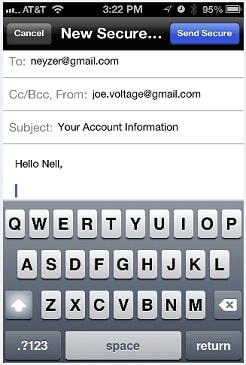
Receiving Secure Email
With the Voltage SecureMail software, the decryption process for incoming secure messages happens automatically. Each secure email received also has a digital signature that is displayed with each decrypted message in Outlook Express or viewed by clicking on the highlighted ‘V’ button on the Outlook toolbar.
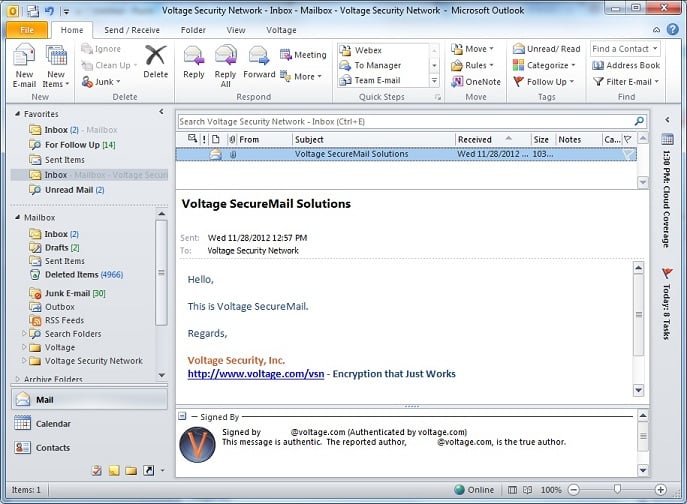
The digital signature identifies the sender of the email and protects the recipient against spoofing. Any message with an invalid signature will automatically bring up an alert to the end user.
If a key is required to decrypt the message, you may be prompted to authenticate yourself. Once you have authenticated, the secure email will decrypt and reveal the contents.
Replying to Secure Email
To reply to secure email, click the ‘Reply’ button as you normally would to compose the message.
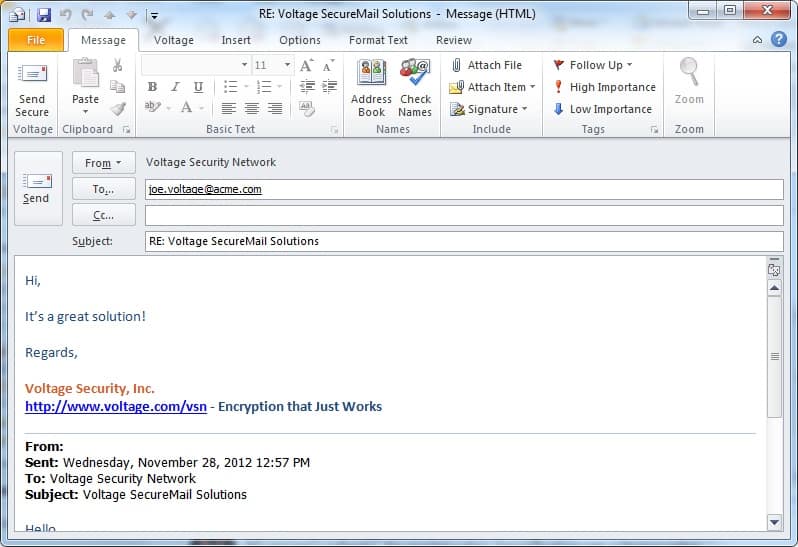
To reply securely, compose a message and click on the ‘Send Secure’ button. Your reply will automatically be encrypted, signed and sent.
What your Voltage SecureMail recipients will see:
Using the Voltage SecureMail Zero Download Messenger (ZDM)
Based on the breakthrough Identity-Based Encryption technology, Voltage SecureMail makes sending secure email as easy as sending it without encryption. The Zero Download Messenger allows your recipients to receive and reply to secure email without the need to download any software. This option provides assurance to recipients that their secure email can always be read no matter what the email or desktop environment is.
Receiving Secure Email
Recipients will see a message in their Inbox with the following contents:
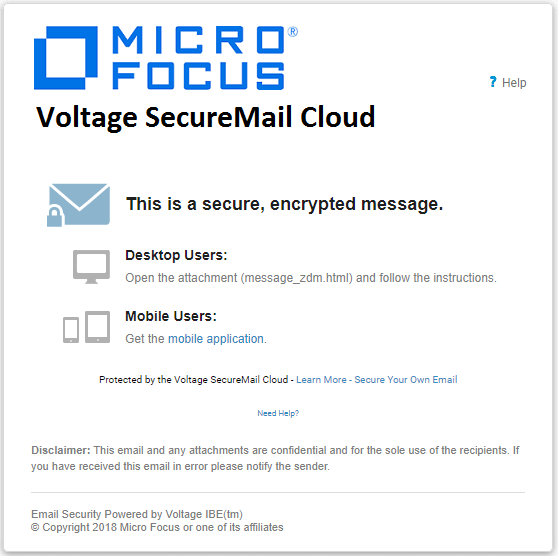
Open the attachment titled “message_zdm.html” to access your secure email. Click the “Read Message” button.
With each secure email, there is an HTML attachment titled “message_zdm.html” that provides access to the Zero Download Messenger. The encrypted body of the original message as well as any attachments to the original email is contained in this HTML attachment. By opening the HTML attachment and authenticating yourself, you will be able to access your secure email and attachments.
After opening the message, you may be prompted to authenticate yourself by an email sent to the email address that you selected (or asked for a username and password if you have already registered).
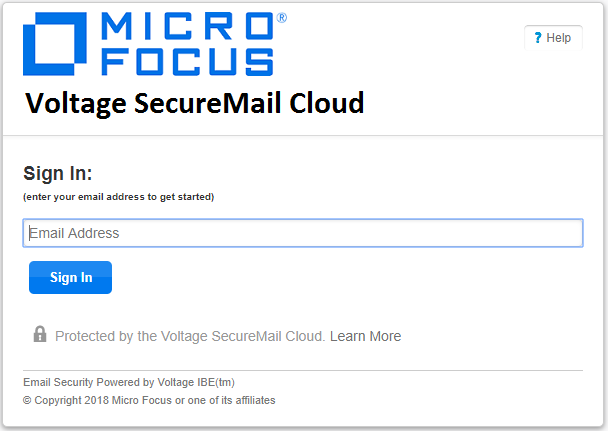
Once you have authenticated, the secure email will decrypt and reveal the contents.
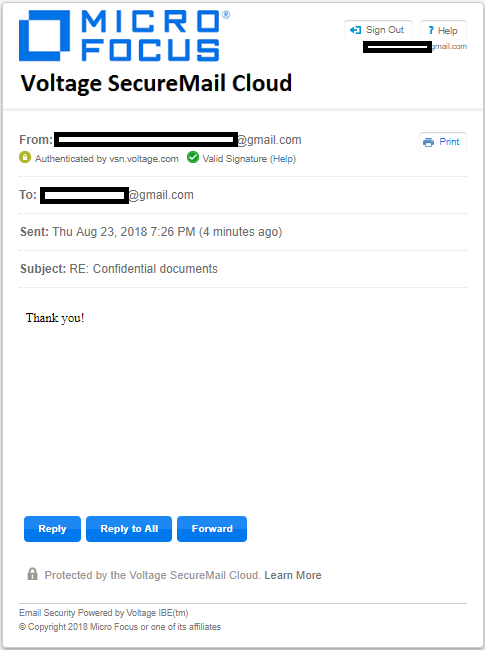
The decrypted secure email will be presented to you in your web browser over a secure SSL connection.
The digital signature identifies the sender of the email and protects the recipient against spoofing. Any message with an invalid signature will show an alert.
Replying to Secure Email
Once you have viewed your secure email, you can reply to the originator, securely. To reply to a secure email via the Zero Download Messenger, click on ‘Reply’ or ‘Reply All’ to compose a reply message.
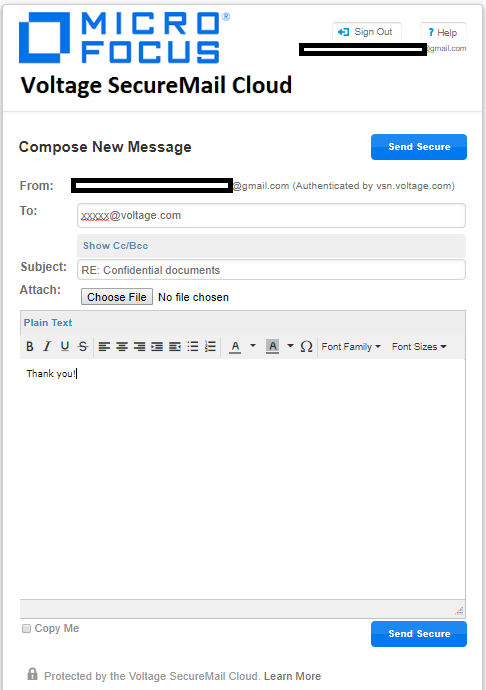
Compose your message and click on the ‘Send Secure’ button – Your reply will automatically be secured. You may also upload attachments to be sent securely to your recipients.
Voltage SecureFile – Encrypting Files
With Voltage SecureFile you can encrypt any file by simply right-clicking on a file.
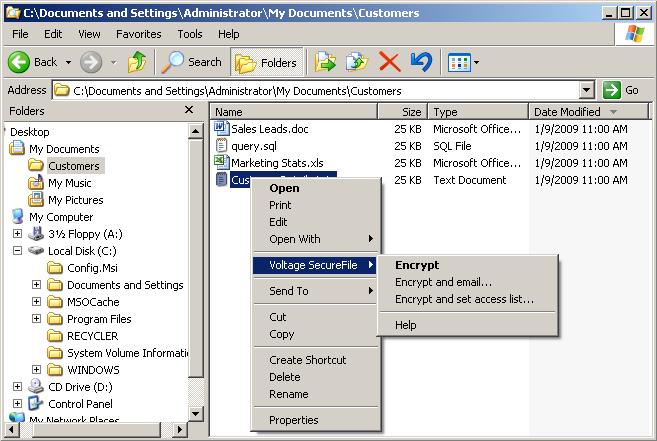
You can encrypt to yourself or grant access to additional users.
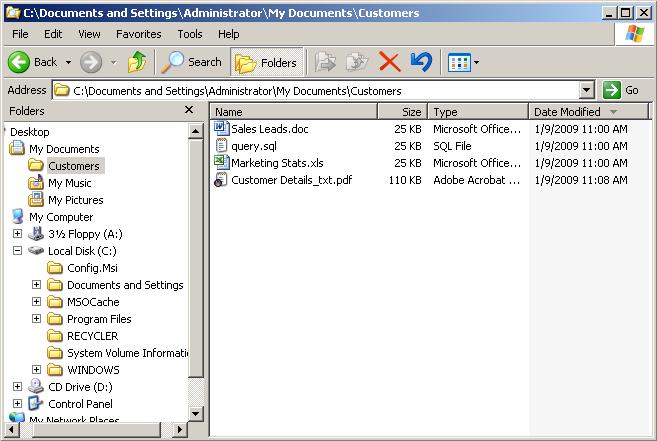
The encrypted file will be saved as a PDF file in the Voltage SecureFile format. Users without Voltage SecureFile software installed will be directed to a SecureFile Reader download page when they open the document. The SecureFile Reader is a free download for all users.
Encrypting MS Office documents
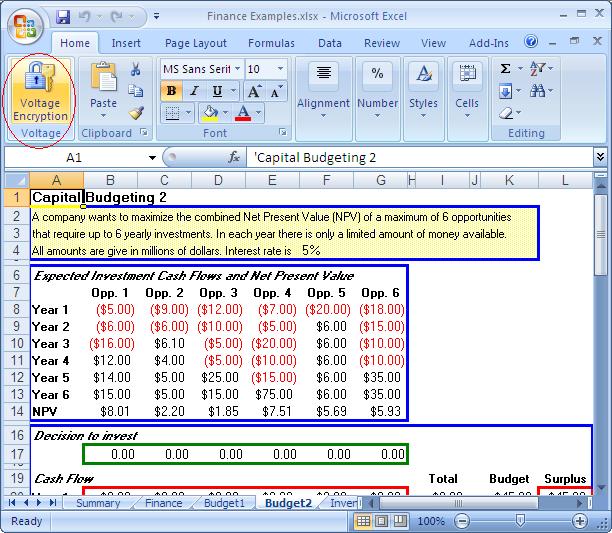
Integration with MS Office allows you to encrypt Office documents with Microsoft’s Information Rights Management feature.
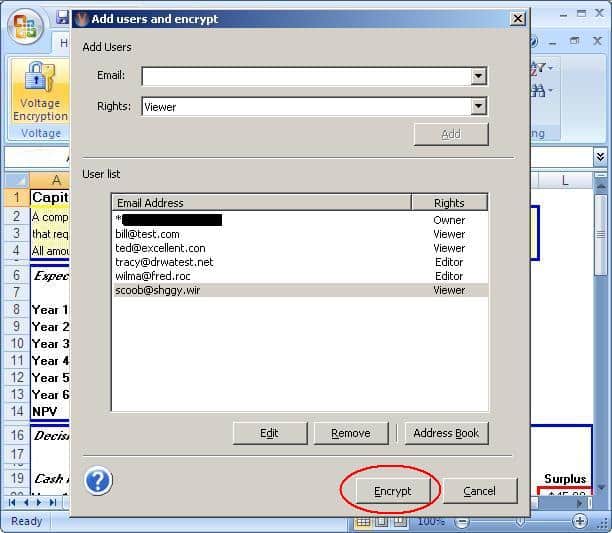
Just add users and select what permissions each will have. Click the Encrypt button and the document will be encrypted and saved in Office format. Only the owner and the designated users will have access. Users without Voltage Security – Data Security software installed will be directed to a SecureFile Reader download page when they open the document. The SecureFile Reader is a free download for all users.
Voltage securemail как пользоваться
Voltage Security Network — Quick Start Guide
Protecting information in just a few minutes
The Voltage Security Network makes sending encrypted email and encrypting your files easy!
Just install the Voltage software and you will be protecting your information in less than a minute.
You can also use the VSN Web Interface (Zero Download Messenger) to send secure, encrypted email to anyone!
Voltage SecureMail
Voltage SecureFile
Voltage SecureFile for Office 2007
Quickstart Guide for Administrators
Voltage SecureMail
During installation of the Voltage SecureMail Desktop plug-in you will be asked to provide your email address (identity or ID). Choose a password and Voltage will verify your identity by sending you a verification email. Click on the link in the verification email and you are ready to send secure email.
Sending Secure Email
Sending secure email is easy – just compose your message, add recipients and press the ‘Send Secure’ button in Outlook or Outlook Express. The email will be encrypted and sent to recipients with your digital signature incorporated in the message.
Receiving Secure Email
With the Voltage SecureMail software, the decryption process for incoming secure messages happens automatically. Each secure email received also has a digital signature that is displayed with each decrypted message in Outlook Express or viewed by clicking on the highlighted ‘V’ button on the Outlook toolbar.
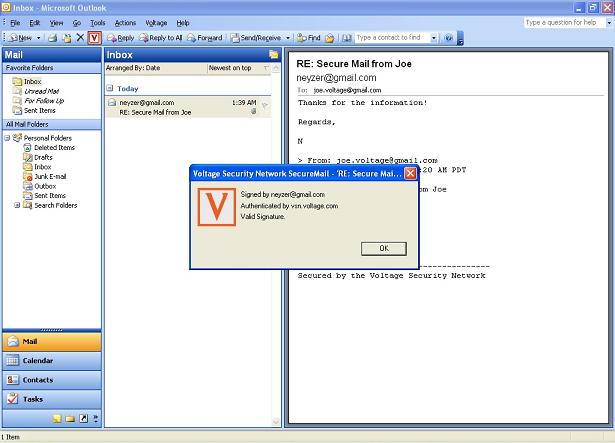
The digital signature identifies the sender of the email and protects the recipient against spoofing. Any message with an invalid signature will automatically bring up an alert to the end user.
If a key is required to decrypt the message, you may be prompted to authenticate yourself. Once you have authenticated, the secure email will decrypt and reveal the contents.
Replying to Secure Email
To reply to secure email, click on Reply as you normally would to compose the message.
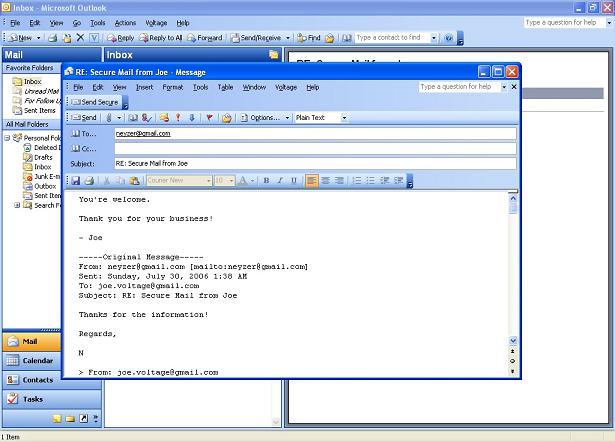
To reply securely, compose a message and click on the ‘Send Secure’ button. Your reply will automatically be encrypted, signed and sent.
What your Voltage SecureMail recipients will see:
Using the Voltage SecureMail Zero Download Messenger (ZDM)
Based on the breakthrough Identity-Based Encryption technology, Voltage SecureMail makes sending secure email as easy as sending it without encryption. The Zero Download Messenger allows your recipients to receive and reply to secure email without the need to download any software. This option provides assurance to recipients that their secure email can always be read no matter what the email or desktop environment is.
Receiving Secure Email
Recipients will see a message in their Inbox with the following contents:
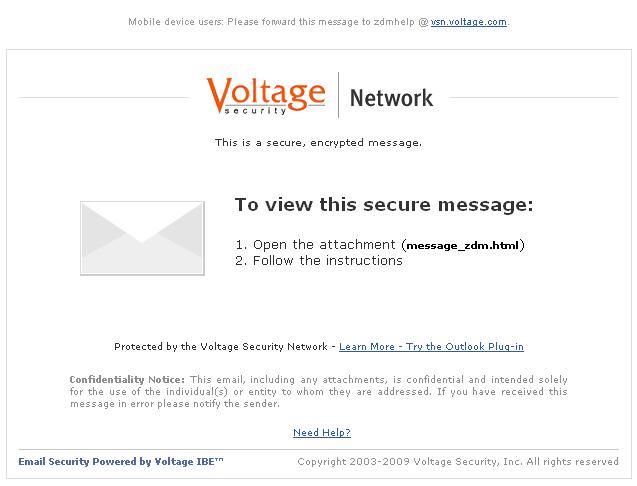
Open the attachment titled «message_zdm.html» to access your secure email. Click the «Read Message» button.
With each secure email, there is an HTML attachment titled “message_zdm.html” that provides access to the Zero Download Messenger. The encrypted body of the original message as well as any attachments to the original email is contained in this HTML attachment. By opening the HTML attachment and authenticating yourself, you will be able to access your secure email and attachments.
After opening the message, you may be prompted to authenticate yourself by an email sent to the email address that you selected (or asked for a username and password if you have previously registered).
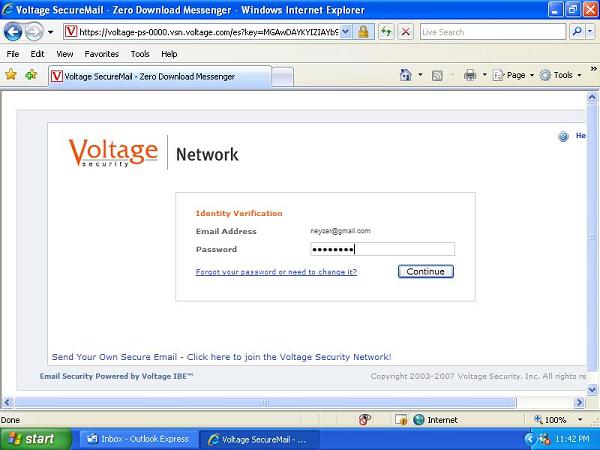
Once you have authenticated, the secure email will decrypt and reveal the contents.
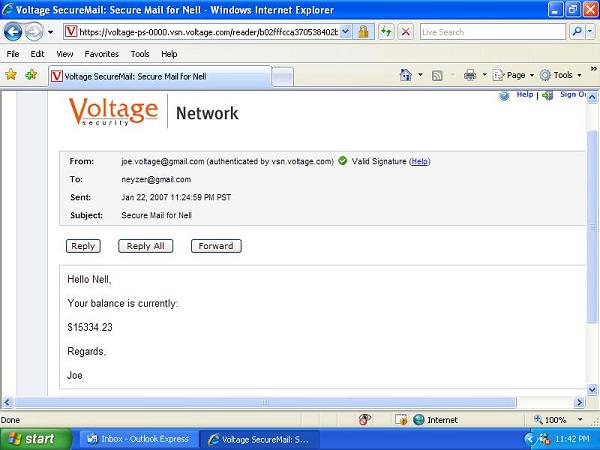
The decrypted secure email will be presented to you in your web browser over a secure SSL connection.
The digital signature identifies the sender of the email and protects the recipient against spoofing. Any message with an invalid signature will show an alert.
Replying to Secure Email
Once you have viewed your secure email, you can reply to the originator, securely. To reply to a secure email via the Zero Download Messenger, click on ‘Reply’ or ‘Reply All’ to compose a reply message.
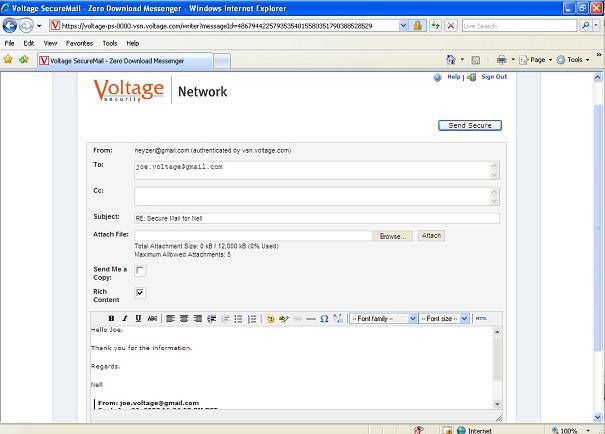
Compose your message and click on the ‘Send Secure’ button – Your reply will automatically be secured. You may also upload attachments to be sent securely to your recipients.
Voltage SecureFile — Encrypting Files
With Voltage SecureFile you can encrypt any file by simply right-clicking on a file.
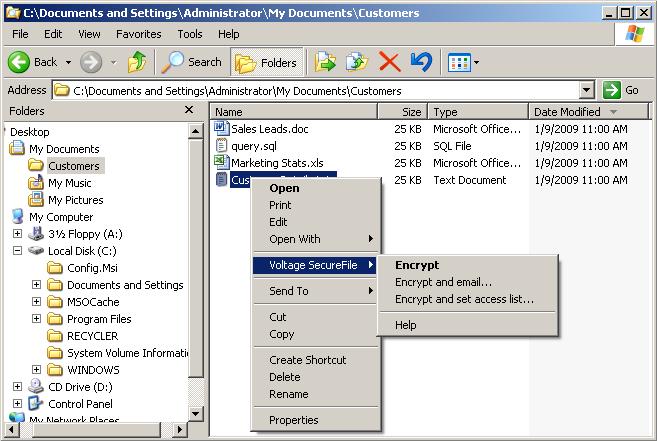
You can encrypt to yourself or grant access to additional users.
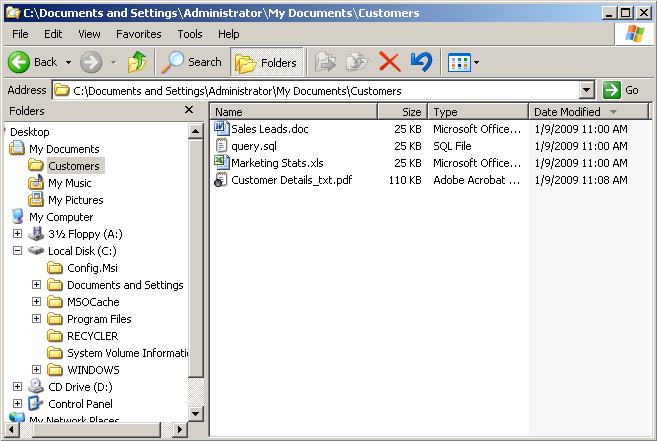
The encrypted file will be saved as a PDF file in the Voltage SecureFile format. Users without Voltage SecureFile software installed will be directed to a SecureFile Reader download page when they open the document. The SecureFile Reader is a free download for all users.
Encrypting MS Office 2007 documents
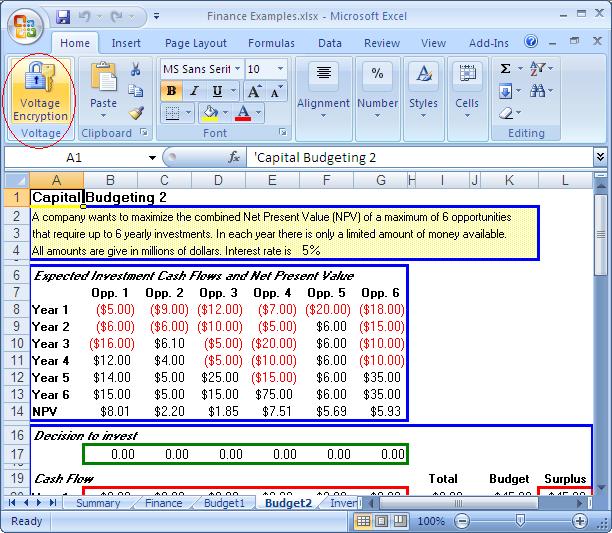
Integration with MS Office 2007 allows you to encrypt Office documents with Microsoft’s Information Rights Management feature.
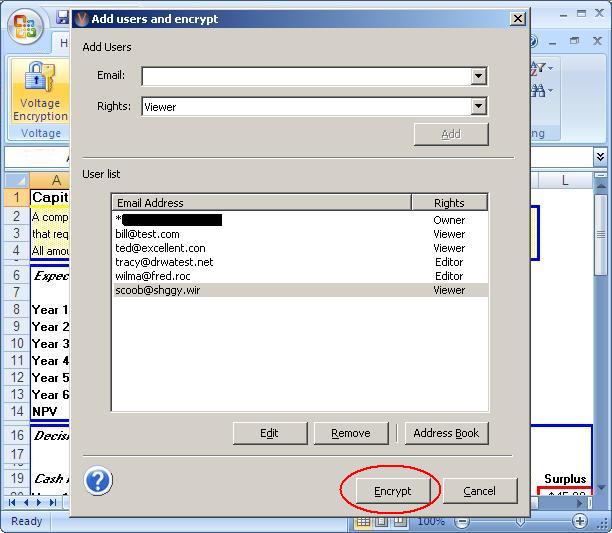
Just add users and select what permissions each will have. Click the Encrypt button and the document will be encrypted and saved in Office 2007 format. Only the owner and the designated users will have access. Users without Voltage software installed will be directed to a SecureFile Reader download page when they open the document. The SecureFile Reader is a free download for all users.
Voltage Security — технологии шифрования для всех?
Компания Voltage Security сообщила о разработке технологии шифрования электронной
корреспонденции и других документов Identity-Based Encryption (IBE), которая позиционируется
ею как простая в использовании и недорогая альтернатива традиционным системам
на базе открытого/индивидуального ключей и цифровым сертификатам.

Читатели собрали $180 тыс. на истребитель для ВСУ за 10 дней (нужно еще $2,5 млн). Они помогают сбивать российские ракеты
Новая технология основана на математических алгоритмах, разработанных ученым Стэнфордского университета д-ром Дэном Бонэ (Dan Boneh) и специалистом Калифорнийского университета д-ром Мэттью Франклином (Matthew Franklin), входящим также в совет директоров Voltage Security.
IBE предусматривает использование особого типа функций, называемых билинейными картами. Они обладают следующим свойством:
| F(ax, by) = F (bx, ay). |
Вкратце схему работы системы на базе IBE можно описать таким образом. Выделенный сервер ключей при инициализации с помощью метода эллиптических кривых выбирает два параметра: один открытый — P, а второй закрытый — s. Величины P и s•P при этом доступны всем.
Теперь предположим, что пользователь A хочет зашифровать документ, отсылаемый пользователю B. Для этого на сервер с компьютера A отправляется один из идентификаторов B — пусть для определенности им будет адрес его электронной почты [email protected] (хотя это может быть IP-адрес, номер телефона и т. п.) и сгенерированное случайным образом число r. На основании адреса [email protected], опять же, методом эллиптических кривых выбирается его "криптографический" идентификатор ID (он, по сути, выполняет роль открытого ключа) и рассчитывается ключ
которым пересылаемый документ и шифруется.
Вместе с самим документом пользователю B отправляется и значение r•P. Для расшифровки сообщения он должен обратиться к серверу, который на основании его электронного адреса [email protected] проводит аутентификацию (предварительная регистрация при этом не нужна!) и возвращает ему величину s•ID — она и является индивидуальным ключом данного пользователя. Особенно важно то, что ключ этот получается только один раз, т. е. в дальнейшем работа с сервером не требуется. Теперь, благодаря упомянутому выше свойству билинейных карт, B может вычислить значение ключа
| k=F(s•ID, r•P) |
и расшифровать документ.
Как отмечают специалисты, и это нетрудно видеть из сказанного выше, IBE в общих чертах напоминает метод шифрования по открытому/индивидуальному ключам. Однако, по заявлениям представителей Voltage Security, она значительно проще и дешевле в установке, настройке и применении и позволяет сделать технологии криптографии по-настоящему массовыми, поскольку ориентирована на рядового пользователя. Действительно, ни для кого не секрет, что системы шифрования в настоящее время используются только там, где без этого просто не обойтись (скажем, в электронной коммерции), и, к примеру, мало кто занимался кодированием своей электронной корреспонденции.
Вероятно, именно поэтому технологию IBE многие и называют радикально свежим подходом.
"Это абсолютно иное решение, поскольку когда речь идет о системах безопасности, простота использования является одним из критических факторов", — считает специалист Массачусетского технологического института Рональд Ривест (Ronald Rivest), принимавший участие в разработке технологии шифрования с применением открытого ключа.
Еще один немаловажный момент (о чем уже вскользь упоминалось, но следует обратить на это внимание еще раз): возможность отправки зашифрованных документов пользователям, "не приобщенным" заранее к системе защиты на основе IBE.
"В случае IBE отправителю нет нужды беспокоиться, зарегистрирован ли предварительно получатель в системе", — отмечает президент фирмы Cryptography Research Пол Кохер (Paul Kocher).
На текущий момент Voltage Security предлагается следующий набор продуктов и служб:
Voltage SecurePolicy Suite — центральный сервер, предназначенный для выполнения задач по обеспечению работы защитных алгоритмов, выдаче ключей IBE, администрированию критических для бизнеса коммуникационных приложений и т. д.;
Voltage SecurePolicy Service — служба для пользователей Voltage SecurePolicy Suite;
Voltage SecureMail — программный модуль, предназначенный для использования с существующими почтовыми системами, который обеспечивает прозрачный механизм отправки и приема электронной корреспонденции в защищенном режиме.
Voltage SecureFile — программный модуль для обеспечения безопасности файлов, каталогов и других документов на порталах и в интрасетях.
Voltage securemail как пользоваться
For the best experience, use Google Chrome or Mozilla Firefox.
- Вход в систему технической поддержки
- My Micro Focus
ValueEdge: Value Stream Management
Align corporate investments with business strategy
Continuous quality from requirements to delivery
Scale enterprise SCCM with security and compliance
Resilient AI-powered functional test automation
Enterprise-level requirements management
Deliver continuous application performance testing
Plan, track, orchestrate, and release applications
Govern quality and implement auditable processes
Automate deployments for continuous delivery
Создавайте и модернизируйте бизнес-приложения с использованием современных технологий
The leading solution for COBOL application modernization
Модернизируйте мэйнфрейм-приложения IBM, процессы доставки, средства доступа и инфраструктуру.
Модернизация доступа приложений к хосту: проще, удобнее в интеграции и управлении, безопаснее
Достижение взаимодействия систем на уровне предприятия
Modern mainframe application delivery for IBM Z
Secure, zero-footprint access to host applications
Access host data and automate processes with RPA
Multi-factor Authentication for IBM z/OS endpoints
Безопасная разработка, тестирование параметров безопасности, непрерывный мониторинг и защита информации
Augment human intelligence
Шифрование, токенизация данных и управление ключами безопасности для деидентификации и сохранения конфиденциальности данных
Интегрированный подход к управлению идентификацией и доступом
Deliver simplified, secure access to users
Scale to billions of identities with IGA platform
Gain control of privileged user activities
Track changes and activities in managed services
Определяет ранее известные и новые угрозы с помощью корреляции, приема данных и аналитики
Analytics for text, audio, video, and image data
Reduce risk, cost, and maintenance, and T2M
AI and machine learning for data analysis
Enterprise backup/disaster recovery
Unified traditional and mobile device management
Meet regulatory & privacy retention requirements
Email, IM, and chat-based collaboration
Mobile workforce communication & collaboration
Secure critical file storage and print services
Удобный пользовательский интерфейс и высокая эффективность работы службы поддержки основаны на технологии машинного самообучения
Первое контейнеризированное автономное решение для контроля работы гибридных ИТ
Автоматизация и управление для традиционных, виртуальных и программно-определяемых сетей
Обнаружение элементов конфигурации и управление ими в гибридных ИТ-средах.
Упрощение автоматизации и контроля процессов
Комплексная автоматизация ИТ-процессов
Manage IT & software assets for better compliance
Автоматизация подготовки, внесения исправлений и соответствия требованиям для всего ЦОД
Создавайте и масштабируйте безопасные автоматизированные бизнес-процессы на предприятии.
- Список продуктов
- Capabilities A-Z
- Tech Topics A-Z
- Free Trials
- Apps — Marketplace
- Форум
- Premium Support и гибкие кредиты
- Product Security Services
- Профессиональные услуги
Получите всю информацию из массива больших данных за счет аналитики в режиме реального времени и поиска по неупорядоченным данным.
Здесь собраны все учебные ресурсы Micro Focus
Совершенствуйте навыки, которые помогут вам достичь успеха
- Познакомьтесь с Micro Focus
- Вакансии
- Events
- Пресс-центр
- Сотрудничество с инвесторами
- Руководство
- Корпоративная ответственность
- Our COVID-19 Response
- Contact Us
- Контактная информация
- Бесплатные пробные версии
- Вход в систему технической поддержки
- My Micro Focus
Повышайте скорость работы, устраняйте препятствия и непрерывно совершенствуйте процесс доставки программного обеспечения
ValueEdge: Value Stream Management
Align corporate investments with business strategy
Continuous quality from requirements to delivery
Scale enterprise SCCM with security and compliance
Resilient AI-powered functional test automation
Enterprise-level requirements management
Deliver continuous application performance testing
Plan, track, orchestrate, and release applications
Govern quality and implement auditable processes
Automate deployments for continuous delivery
Access all products in application delivery management
Модернизируйте основные бизнес-системы, чтобы преобразовать свое предприятие.
Создавайте и модернизируйте бизнес-приложения с использованием современных технологий
The leading solution for COBOL application modernization
Модернизируйте мэйнфрейм-приложения IBM, процессы доставки, средства доступа и инфраструктуру.
Модернизация доступа приложений к хосту: проще, удобнее в интеграции и управлении, безопаснее
Достижение взаимодействия систем на уровне предприятия
Modern mainframe application delivery for IBM Z
Secure, zero-footprint access to host applications
Access host data and automate processes with RPA
Multi-factor Authentication for IBM z/OS endpoints
Access all products in Application Modernization & Connectivity
Безопасность во всех направлениях деятельности: операциях, приложениях, идентификации и обработке данных
Безопасная разработка, тестирование параметров безопасности, непрерывный мониторинг и защита информации
Augment human intelligence
Шифрование, токенизация данных и управление ключами безопасности для деидентификации и сохранения конфиденциальности данных
Интегрированный подход к управлению идентификацией и доступом
Deliver simplified, secure access to users
Scale to billions of identities with IGA platform
Gain control of privileged user activities
Track changes and activities in managed services
Определяет ранее известные и новые угрозы с помощью корреляции, приема данных и аналитики
Access all products in CyberRes
Надежные технологии обеспечения правовой защиты, соответствия нормам и соблюдения конфиденциальности
Analytics for text, audio, video, and image data
Reduce risk, cost, and maintenance, and T2M
AI and machine learning for data analysis
Enterprise backup/disaster recovery
Unified traditional and mobile device management
Meet regulatory & privacy retention requirements
Email, IM, and chat-based collaboration
Mobile workforce communication & collaboration
Secure critical file storage and print services
Access all products in Information Management and Governance
Ускорьте свои ИТ-операции до скорости DevOps
Удобный пользовательский интерфейс и высокая эффективность работы службы поддержки основаны на технологии машинного самообучения
Первое контейнеризированное автономное решение для контроля работы гибридных ИТ
Автоматизация и управление для традиционных, виртуальных и программно-определяемых сетей
Обнаружение элементов конфигурации и управление ими в гибридных ИТ-средах.
Упрощение автоматизации и контроля процессов
Комплексная автоматизация ИТ-процессов
Manage IT & software assets for better compliance
Автоматизация подготовки, внесения исправлений и соответствия требованиям для всего ЦОД
Создавайте и масштабируйте безопасные автоматизированные бизнес-процессы на предприятии.
Компания упростила шифрование e-mail
Молодая компания разработала ПО шифрования электронной почты, которое эффективно работает при его использовании одним из участников обмена корреспонденцией.
Компания из Пало-Альто старается добиться того, чтобы больше людей шифровало свою электронную почту. Система шифрования e-mail Voltage Security представляет собой несколько необычный вариант существующей практики использования для шифрования и дешифрования сообщений комбинации из двух криптографических ключей — открытого и частного. При подходе Voltage так называемый открытый ключ получают из адреса e-mail отправителя, что исключает из процесса один из шагов. «Вам не приходится проходить процедуру получения сертификата безопасности», — пояснил генеральный директор Voltage Сатвик Кришнамурти.
Той же степени защиты можно достичь и с применением существующих систем аутентификации с открытым ключом, однако Voltage утверждает, что простота ее ПО может привлечь предприятия, (регистрацию предприятий можно выполнить в Москве)которые заинтересованы в повышении надежности системы e-mail, но не решаются на установку системы шифрования из-за ее сложности.
Идея использования личных данных в качестве основы открытого ключа не нова. В 1984 году такой подход предложил пионер шифрования с открытым ключом Ади Шамир. В 2000 году два профессора — Дэн Боне и Мэтт Франклин — опубликовали работу по математическим основам такого подхода. Боне и другие основали Voltage для коммерциализации ПО, использующего их метод. Компания, в которой сейчас 20 сотрудников, финансируется фирмами Morgenthaler и Hummer Winblad.
Результатом усилий Voltage стала программа, исключающая потребность в каких-либо предварительных действиях для обмена шифрованными сообщениями. По словам Кришнамурти, программа компании должна быть только у отправителя e-mail. Получатель может автоматически расшифровать сообщение, пользуясь Outlook, Outlook Express, Eudora и даже карманным ПК BlackBerry. Опытная версия ПО предназначена для IBM Lotus Notes.
Многие технологические компании ищут способы упростить процесс шифрования электронной почты, построив его на персональных данных. Например, Microsoft на прошлой неделе анонсировала новое ПО Microsoft Identity Integration Server 2003, предназначенное для автоматизации процесса управления информацией аутентификации пользователей в корпоративных сетях. А Hewlett-Packard на прошлой неделе объявила о приобретении ПО управления информацией аутентификации SelectAccess у британской софтверной компании Baltimore Technologies.
В своем интервью старший вице-президент НР Нора Денцель сказала, что, хотя НР в какой-то мере придется конкурировать с Microsoft, IBM и другими, индустрия ПО защиты сильно фрагментирована. В то же время, «ее ждет огромный рост», что делает эту область привлекательной для таких фирм, как НР. «В бизнесе секьюрити доминируют „прочие”, — сказала Денцель, которая отвечает за софтверный бизнес НР. — В нем нет единственного поставщика». Сделка должна быть заключена в конце финансового года НР в октябре и подлежит утверждению акционерами Baltimore.
Voltage утверждает, что, кроме упрощения процесса отправки зашифрованных электронных писем, ее подход помогает сократить расходы на администрирование системы шифрования. Однако стоимость ПО Кришнамурти назвать отказался. По его словам, оно коммерчески доступно, и он указал двух пилотных заказчиков: Silicon Valley Bank и eHealthInsurance.