How To Import Trust Wallet To Metamask (Quick Guide)
Trust Wallet and Metamask are the two most popular non-custodial crypto wallets right now with both offering users full control over their crypto assets by providing the secret recovery phrase (or private key) to their wallets when the wallet is created.
One of the most important features of non-custodial crypto wallets like Trust Wallet and Metamask is the ability to effortlessly import your wallets across multiple crypto wallet apps that supports importing wallets either via private key or seed phrase.
It is common knowledge that Trust Wallet is only available on mobile (Android & iOS) and while there are some tweaks to using Trust Wallet on PC, we generally recommend installing the Metamask extension on your preferred browser and importing the wallet to Metamask to you want to access your Trust Wallet funds on PC.
Thanks to recovery phrases, importing one crypto wallet to the other is an easy procedure and in the guide, you will learn how to import Trust Wallet to Metamask quickly.
How To Import Trust Wallet To Metamask Easily (Full Guide)
Unlike Trust Wallet which is only available on mobile, the Metamask wallet is available on both desktop (via a browser extension) and a mobile app so this guide will cover the steps on how to migrate from Trust Wallet to the Metamask extension and mobile app.
Update: Trust Wallet now has an official web browser extension just like Metamask. You can download and install the extension on your browser directly on the Trust Wallet website.
How To Import Trust Wallet To Metamask Extension
Here is how you can import Trust Wallet to the Metamask browser extension on PC/Mac.
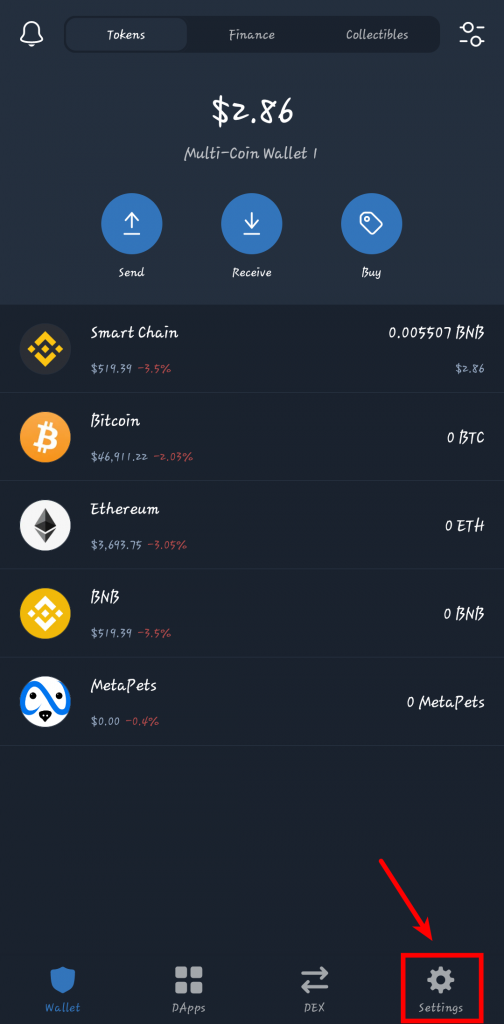
Step 1: Open the Trust Wallet app on your device and tap on [Settings].
The first step in this process is to launch the Trust Wallet app on your mobile device (Android or iOS), then tap on [Settings] in the bottom navigation menu to load the Trust Wallet Settings page.
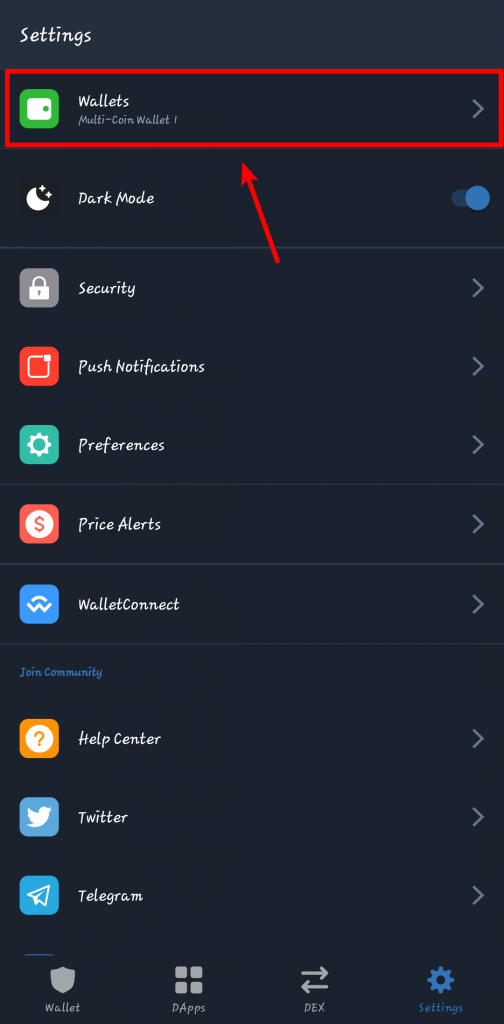
Step 2: Next, tap on [Wallets] and select a wallet to export.
On the Trust Wallet settings page, tap on [Wallets] to show a list of all your available wallets.
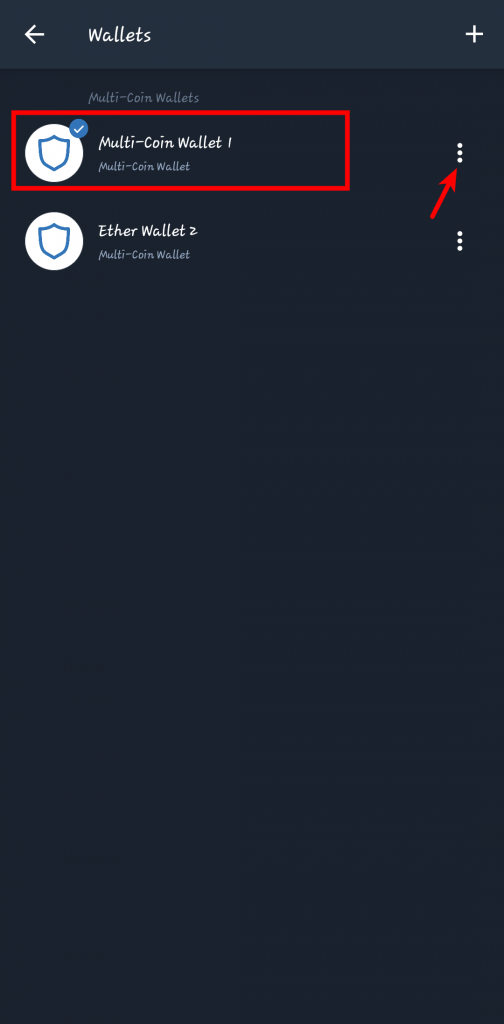
Next, select the wallet you want to export to Metamask and click on the 3 vertical dots beside it to show the details of the wallet.
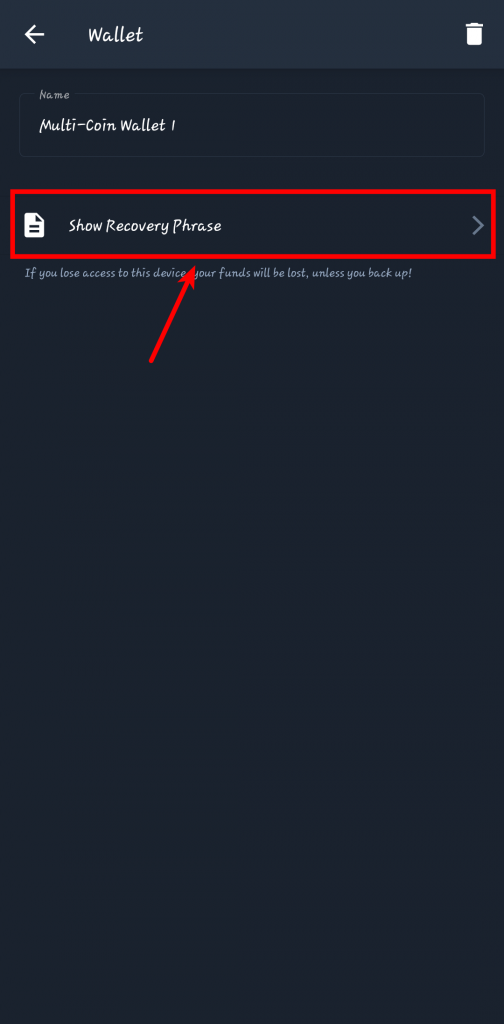
Step 3: Tap [Show Recovery Phrase].
On the page containing the details of the selected wallet, tap on [Show Recovery Phrase] to reveal the recovery phrase of the wallet.
Step 4: Check [I understand the risks] and tap on [CONTINUE] to reveal your wallet’s recovery phrase.
On the next page, Trust Wallet will warn you about the risks associated with exposing your recovery phrase, tick [I understand the risks], and hit the [CONTINUE] button.
Step 5: Tap on [COPY] to copy your recovery phrase.
Tap on [COPY] to copy your recovery phrase to the clipboard.
If you don’t have any way to share your phone’s clipboard with your PC, just write the recovery phrase down on a piece of paper or type it into your computer’s notes/notepad app then proceed with the next step.
Step 6: Install the Metamask extension on your browser and launch it.
Since you now have your Trust Wallet recovery phrase, the next step will be to install the Metamask extension on your browser.
Metamask is available on the Google Chrome Webstore, Firefox add-ons store, and the Edge add-ons store for Microsoft Edge users. If you’re using the Brave browser, you can install Metamask directly from the Chrome Webstore.
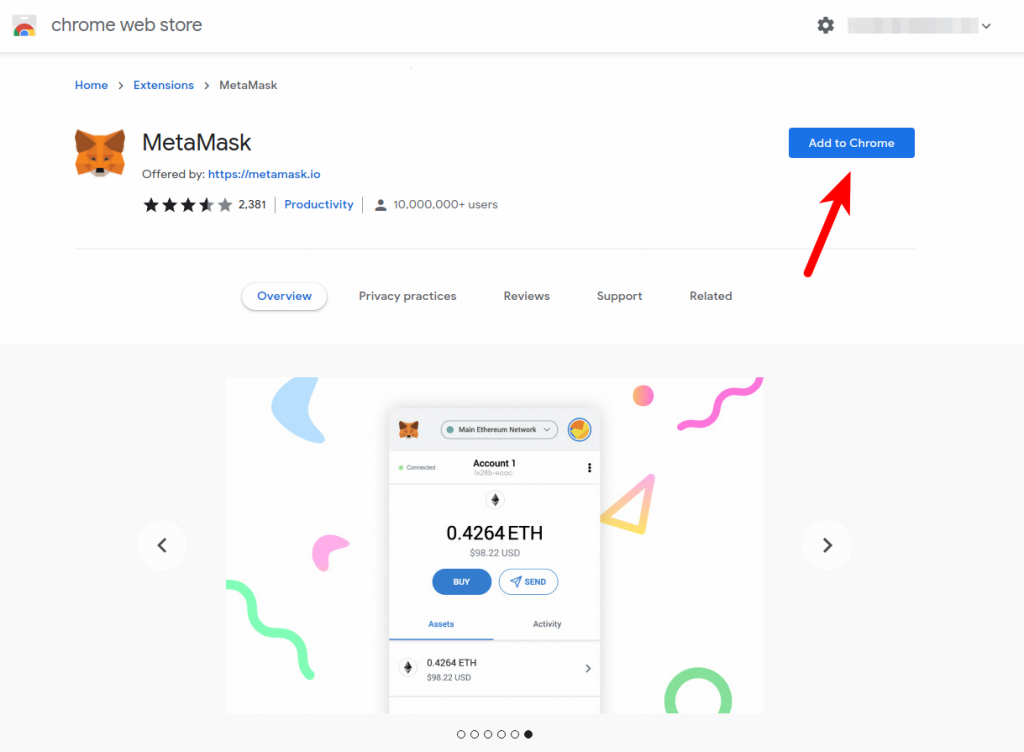
NOTE: Make sure you install Metamask ONLY from the official sources using the links above. Many fake Metamask extensions out there looking to steal your passphrase and eventually, your crypto so beware!
Once the extension is installed successfully, click on the Metamask Icon to launch Metamask on your browser. You can find the icon in your browser’s extensions panel located at the top right corner by the right of the address bar.
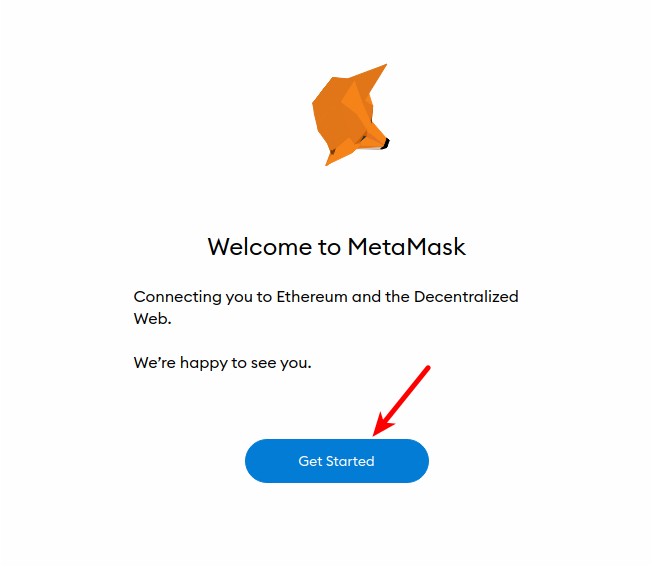
Step 7: Click on [Get Started].
On the Metamask welcome page, click on [Get Started] to start setting up your wallet.
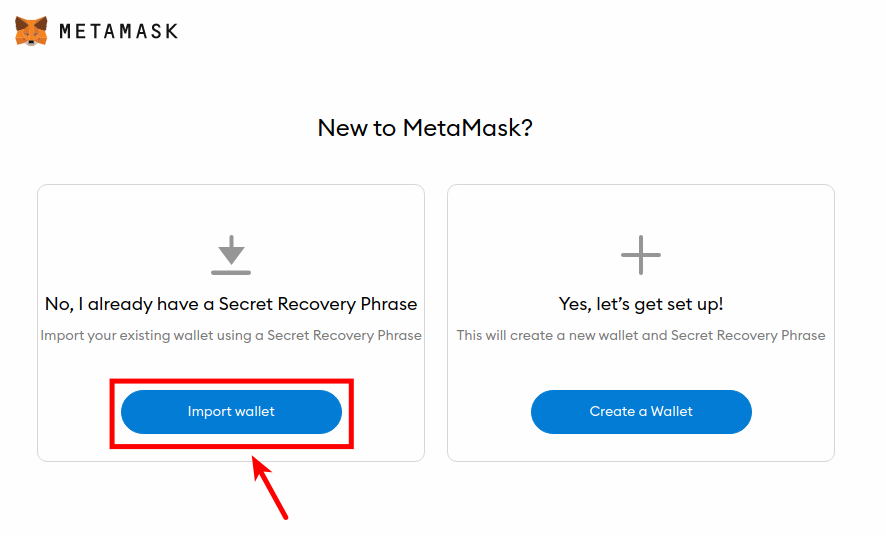
Step 8: Click on [Import Wallet].
On the next page, click on [Import Wallet] to import the wallet on Trust Wallet to Metamask.
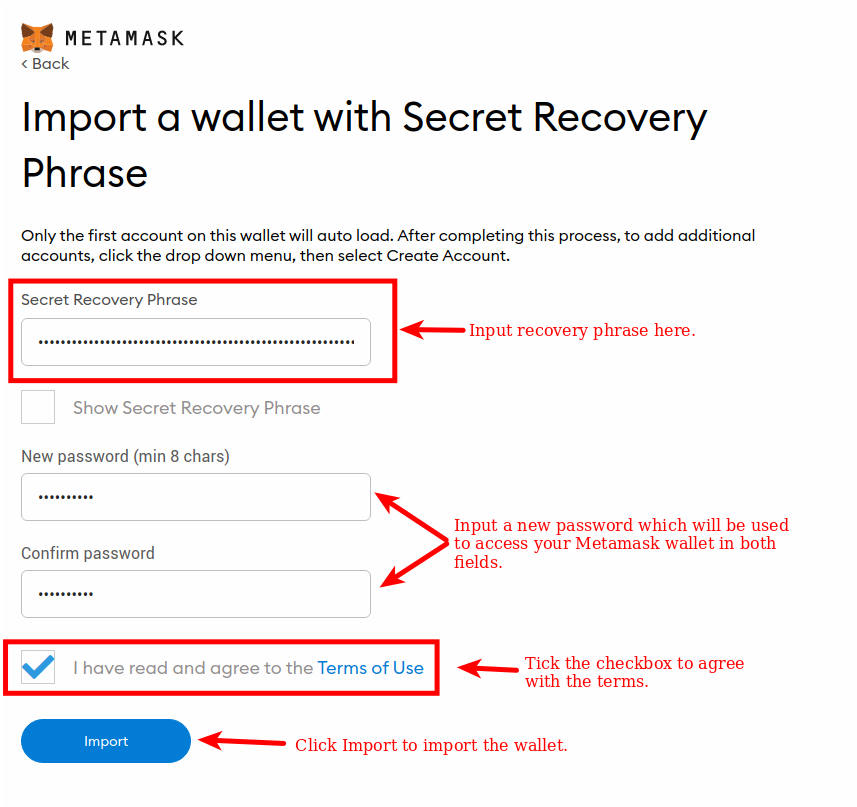
Step 9: Click [I Agree], input your recovery phrase, and set a password.
Click on [I Agree] on the next page.
Next, paste the recovery phrase you copied/noted down from Trust Wallet earlier and set a password that will be used to access your wallet on Metamask. If you wrote this down on a sheet of paper, just type it in.
Tick “Show Secret Recovery Phrase” to view the recovery phrase you typed in/pasted, then confirm if it matches the recovery phrase on Trust Wallet. You can untick this after confirming.
After that, retype the password in the “Confirm Password” section and tick “I have read and agree to the Terms of Use”.
Finally, click on [Import] to import your wallet.
Step 10: Click on [All Done] to view your wallet
Finally, click on [All Done] to view your newly imported wallet on Metamask.
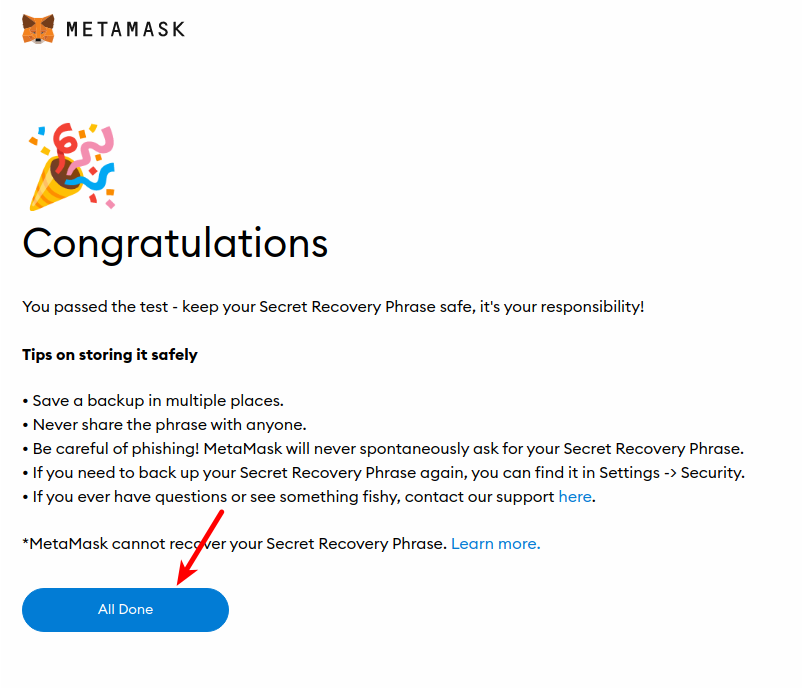
With this, you have successfully imported Trust Wallet to the Metamask extension.
How To Import Trust Wallet To Metamask Mobile App
To import Trust Wallet to the Metamask mobile app, you need to get your recovery phrase.
Please follow Steps 1 to 5 above to get your Trust Wallet recovery phrase. Once you have the recovery phrase, follow the guide below and import Trust Wallet to the Metamask Android or iOS app.
Step 1: Install the Metamask mobile app and tap on [Get Started]
Search and install the Metamask mobile app on the appropriate app store for your device (The App Store for iPhones and the Google Play Store for Android).
Once the app is installed, launch the Metamask app by tapping on the Metamask icon in the apps menu then tap on [Get Started] to start setting up your wallet.
Step 2: Select [Import using Secret Recovery Phrase]
On the Wallet Setup page, tap on [Import using Secret Recovery Phrase] to import your wallet to Metamask.
Step 3: Tap on [I Agree], paste your recovery phrase, and set a password for the wallet.
Tap on [I Agree] to accept the Metamask terms.
On the next page, paste your Trust Wallet recovery phrase in the “Secret Recovery Phrase” section then set a password that will be used to access the Metamask wallet later on.
Next, type in your password again in the “Confirm password” field and tap on [IMPORT] to import your wallet to Metamask using the set recovery phrase.
With this, you have successfully imported Trust Wallet to the Metamask mobile app.
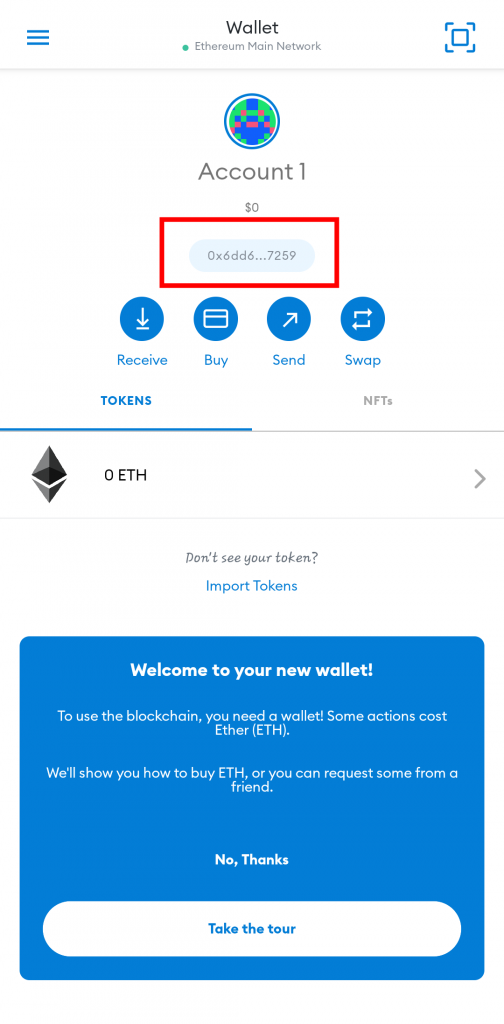 Wallet successfully imported.
Can’t Find Your BNB Balance And Other Tokens After Importing Trust Wallet To Metamask?
Had some BNB (Smart Chain) on the wallet before importing it to Metamask and you can’t find it any longer?
Well, that is because Metamask is only configured to work with the Ethereum blockchain by default so when you import a wallet with coins/tokens on other blockchains, you might not find them there.
Don’t worry though as this is easily fixable and you can get your BNB (or other tokens) back on Metamask. Fixing the issue requires you to add the Binance Smart Chain to your Metamask wallet.
To do that on the Metamask browser extension, launch the extension login into your account. Next, click on [Ethereum Mainnet] > Add Network. After that, input the details below and click [Save].
- Network Name – Binance Smart Chain
- New RPC URL – https://bsc-dataseed.binance.org/
- Chain ID – 56
- Symbol – BNB
- Block Explorer URL – https://bscscan.com
You can get a complete guide to adding the Binance Smart Chain to your Metamask Wallet (Extension & Mobile app) here.
Once you have added the Binance Smart Chain to your Metamask wallet, ensure that the Binance Smart Chain is the selected network on your wallet and you should see the BNB balance like you could on Trust Wallet.
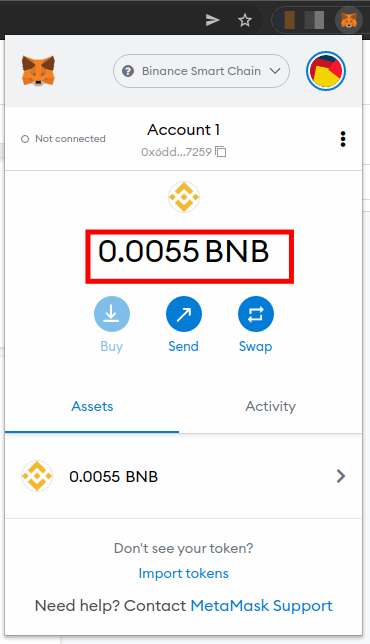
To view other tokens, you need to add each token to your Metamask wallet manually. You can check out our guide on how to add custom tokens to Metamask to learn how to do that easily.
Wrapping Up
Well, that will be it on importing Trust Wallet to Metamask.
Once you have the correct recovery phrase, you can import your wallet across multiple crypto wallet platforms and apps by just inputting the phrase and setting up a new password.
If you do not wish to use the said wallet on Trust Wallet any longer, you can delete the wallet from Trust Wallet and use Metamask as your default wallet client.
If you were searching for a way to import a wallet on Trust Wallet to either the Metamask browser extension or the Metamask mobile app for Android or iOS, we hope this guide helped you do that easily (and successfully).
Import Trust Wallet to MetaMask: The Best Guide
Importing Trust Wallet to MetaMask makes a convenient one-stop shop for all things crypto. This connection makes it easier for users to manage different digital assets. Additionally, it grants them access to multiple decentralized apps all in one place. This kind of convenience goes a long way in improving your experience with crypto assets, so we wrote this guide on how to import Trust Wallet to MetaMask, to help you out.
Table of Contents
How to Import Trust Wallet to Metamask
Although it sounds complex, the process you need to follow to import Trust Wallet to Metamask is straightforward. This six-step process helps you figure out how to get started with both apps and ultimately shows you how to connect MetaMask to Trust Wallet. Let’s explore the step-by-step instructions to achieve this.
Step 1: Create a MetaMask Account
MetaMask is one of the best NFT wallets that supports multiple blockchains from Ethereum to Avalanche and everything in between. With a browser and a mobile app version for Android and iOS devices, MetaMask is an efficient wallet for all things DeFi. Let’s explore how to set up a MetaMask wallet account that we will need when adding the Trust Wallet to MetaMask.
- Go to MetaMask’s Website and click the Download button to download the MetaMask browser extension.
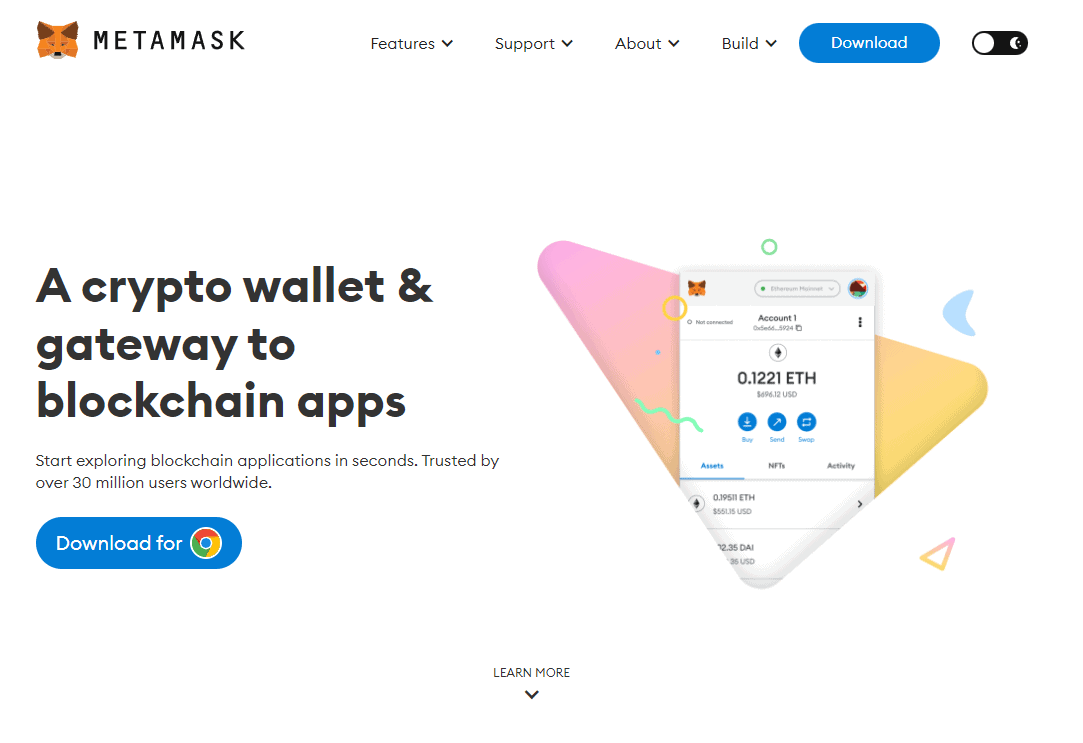
- Click the Instal for Chrome button to initiate the download.
- When the extension downloads successfully, tap the Extension icon on your browser.
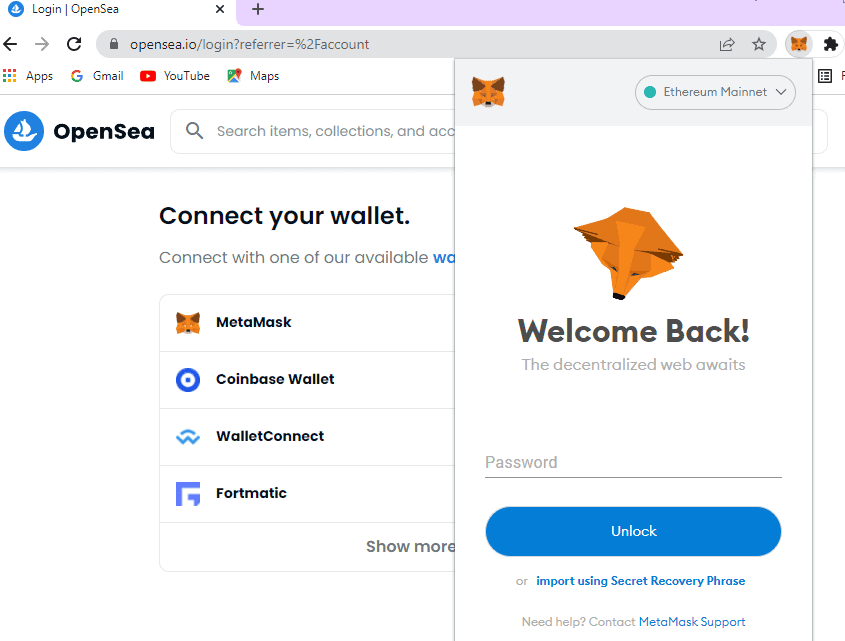
- Choose the MetaMask Extension and click on Get Started to access MetaMask.
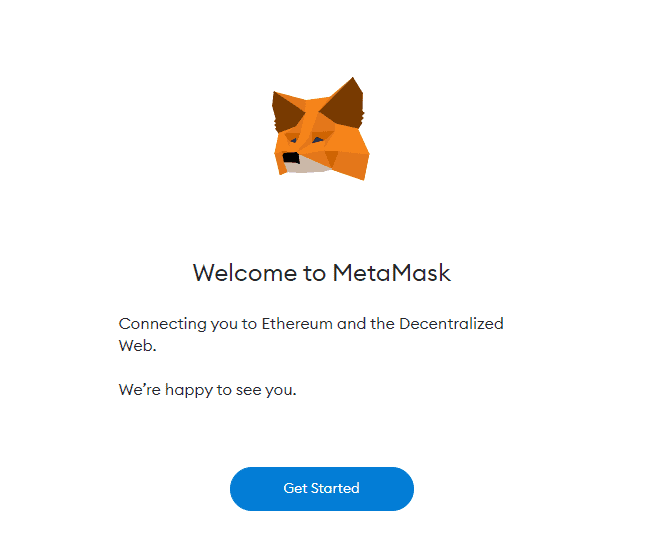
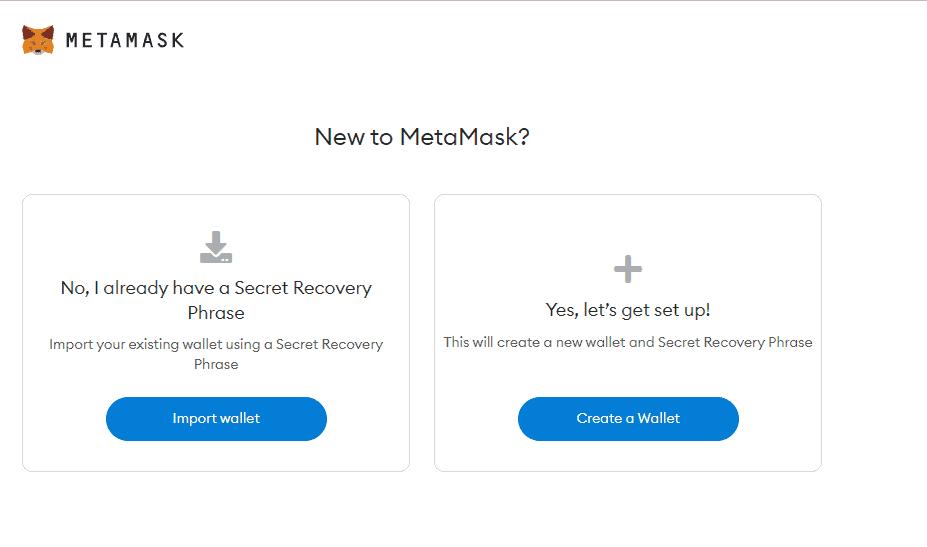
- This redirects you to a tab with the options Import Your Wallet or Create a Wallet. Click the Create a Wallet option.
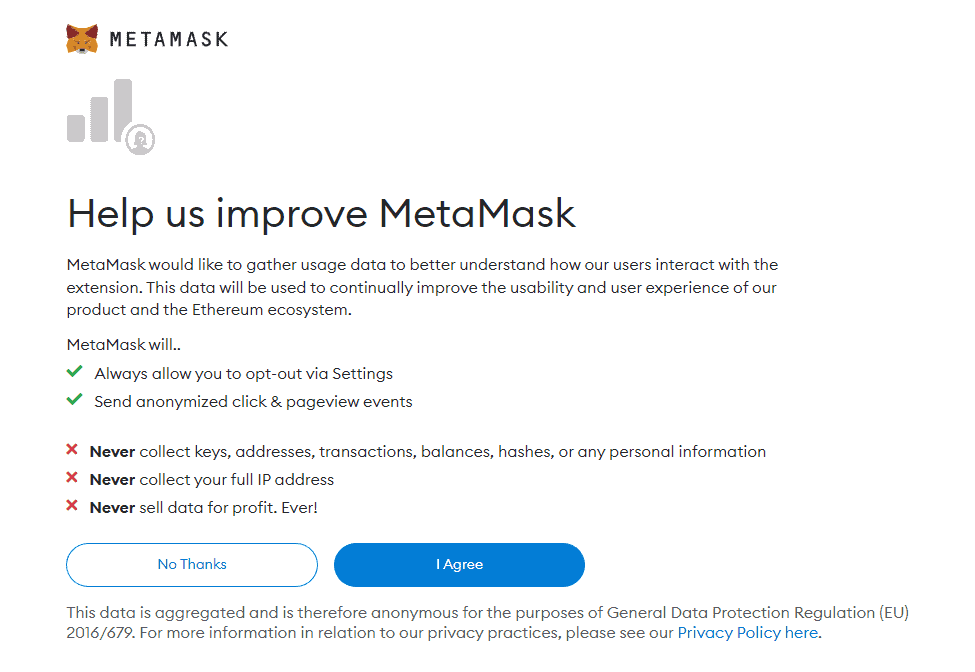
- Read MetaMask’s terms and conditions and click the I Agree button to agree to them.
- Click the Create button to submit a password for your account
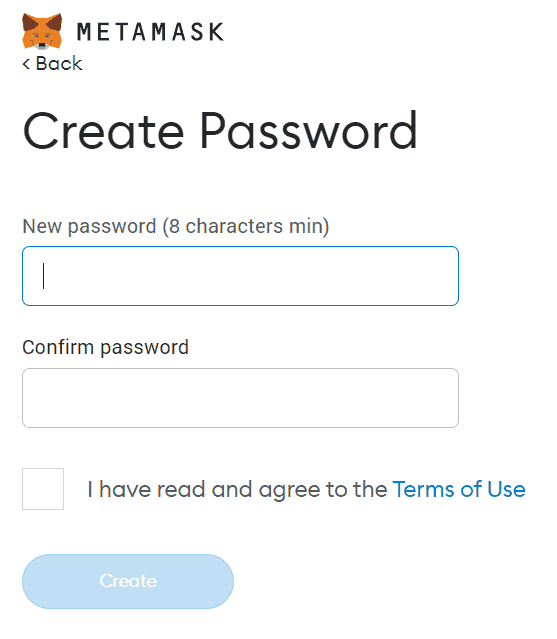
When done, MetaMask will generate a 12-word recovery phrase. This phrase will help you regain access to your account in case you accidentally forget your password and lose access. Write down this password and store it somewhere safe where no one can access it without your express knowledge and permission.
Step 2: Find Your Ethereum Wallet Address
The Ethereum Wallet address for your Metamask wallet is essential in helping you connect your Trust Wallet address and all your Trust Wallet private keys to MetaMask. Let’s go over how to find your Ethereum address on Metamask.
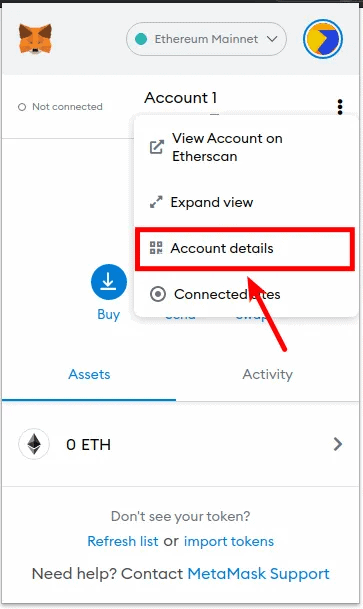
- Navigate to your Metamask wallet interface, click the three-line menu on the top left of the screen and select the Account Details option.
Step 3: Find and Copy Your Metamask Recovery Phrase
When you signed up for Metamask, you received a 12-word secret recovery phrase. Find where you saved this phrase. If you did not store it somewhere, use these instructions to recover your Metamask recovery phrase.
- Click the Menu icon on your Metamask interface and tap on Settings.
- Click on Security and Privacy.
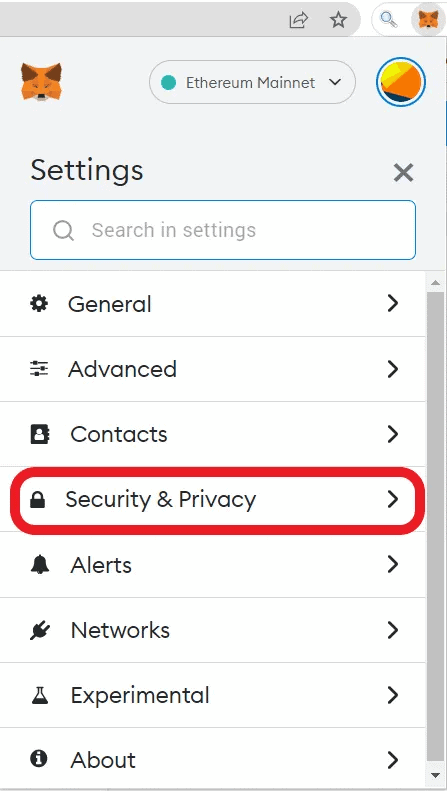
- Select the Reveal Secret Recovery Phrase option.
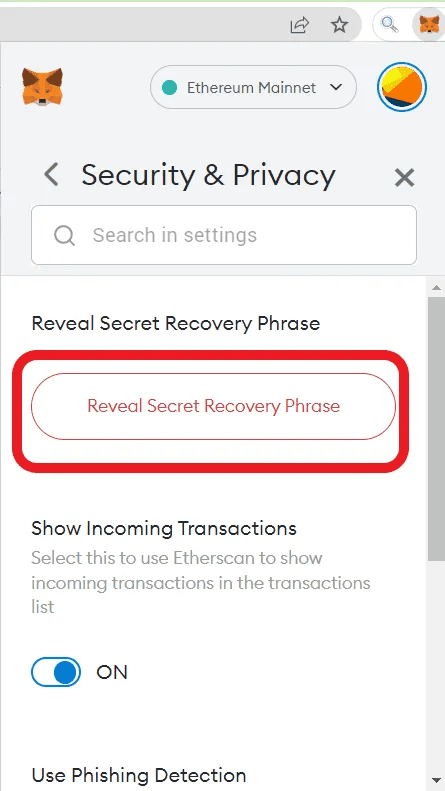
- Write down your recovery phrase in a secure place and exit that dashboard.
Step 4: Create a Trust Wallet Account
After setting up your MetaMask account, you need to create the Trust Wallet account you will import. Here’s a simple walkthrough on how to create a Trust Wallet account.
- Download the Trust Wallet app on your Android or iOS phone.
- Click on the Create a new wallet button to create a new wallet.
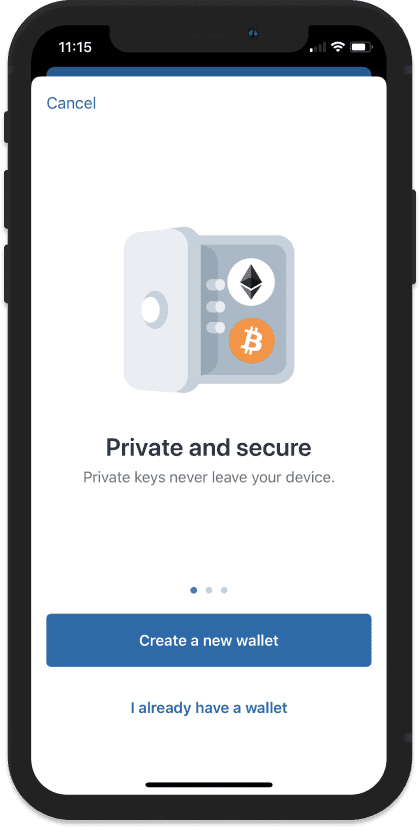
- Read and Accept Trust Wallet’s terms and conditions, then click Continue.
- Write the 12-word recovery password in the exact order it appears on your screen, store it safely, and then click Continue.
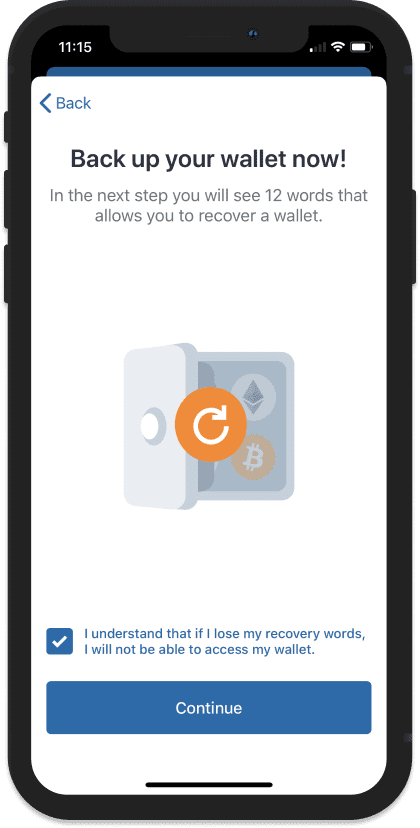
- Verify the recovery phrase by rearranging the words on the next page to match the order of your recovery phrase. When done, click Continue.
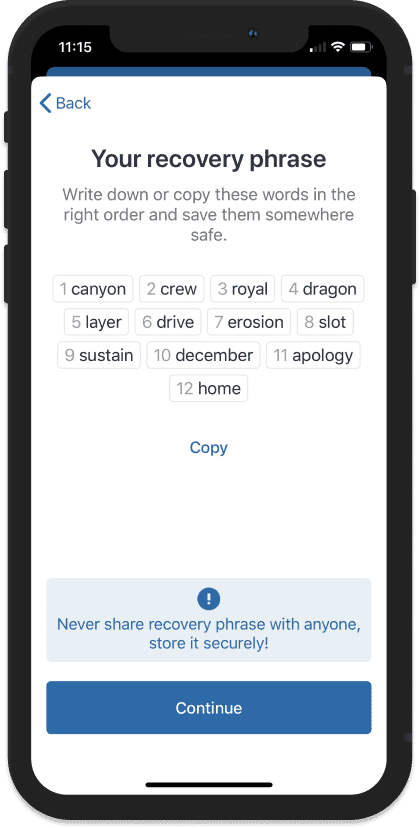
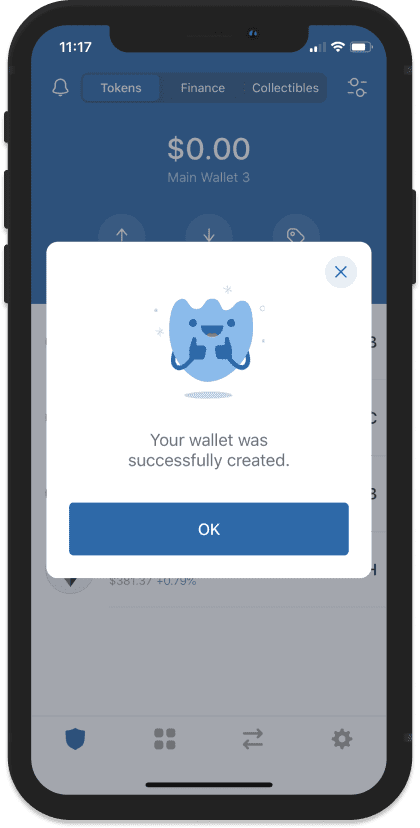
- If you successfully verify your account, you will receive a pop-up message that your account was created successfully.
Step 5: Find Trust Wallet’s Import Screen
For this step, you need to download and install the Trust Wallet app. Once you’re done with this, here’s a step-by-step guide on how to find the import screen.
- On your Trust Wallet app interface, click on the Settings icon at the bottom right of your screen.
- Tap on the “Wallets” option.
- Click the + sign that appears on the upper right side of the screen that pops up.
- You will see two options, Create a New Wallet or Already have a wallet. Select Already have a wallet.
- On the Import screen that appears, select Ethereum.
Step 6: Import the Recovery Phrase and Confirm the Migration
This final step is what you need to finally transfer Trust Wallet to MetaMask. Here are the instructions to achieve this step.
- On the page that pops up once you select Ethereum, enter the Recovery Phrase you obtained from your Metamask account
- Enter a name you can easily remember for your wallet in the Name field and click Import.
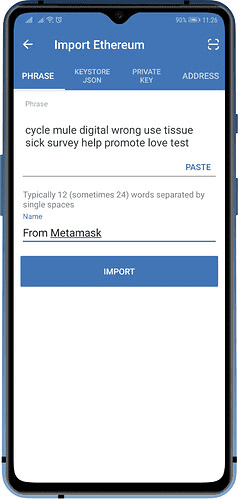
It will take a few minutes for your importation to be confirmed, but once set, a pop-up will appear, letting you know that the process is complete.

Conclusion
Connecting Trust Wallet to MetaMask makes it easy to access multiple cryptocurrencies, NFTs, and decentralized applications. The two-wallet merger is a must-have for anyone exploring digital assets in depth.
1. Is Trust Wallet an Ethereum Wallet?
Yes. Trust Wallet is one of the most popular Ethereum wallets. The wallet comes as a mobile application and supports BEP2 vs ERC20 vs ERC721 tokens. However, it also supports tokens from other non-Ethereum blockchains like XRP, and BNB among others.
2. Can I transfer Coins from other Exchanges to Trust Wallet?
Yes. You can easily transfer funds from other wallets and exchanges like MetaMask, Binance, and Coinbase to Trust Wallet. To achieve this, you’ll need to connect your Trust Wallet to the relevant exchange before you proceed with the transaction.
3. Can I withdraw cash from my Trust Wallet?
You can’t withdraw cash from Trust Wallet directly. However, you can convert the crypto in your Trust Wallet account to fiat through a crypto exchange like Binance to help with the conversion. You can then select your preferred withdrawal platform and initialize the withdrawal. Most people opt to withdraw funds from Trust Wallet to bank accounts, but you can also use online wallets like PayPal.
4. Are there any fees charged to Import TrusWallet to MetaMask?
Importing Trust Wallet to MetaMask is a free process. All you need is an account on both platforms. However, when transferring crypto between the two wallets, charges may apply.
5. Is MetaMask better than Trust Wallet?
MetaMask may have a few superior features compared to Trust Wallet. The most significant of all is that MetaMask is available as a browser and mobile app, while Trust Wallet is only accessible from a mobile app.
On the other hand, Trust Wallet is compatible with multiple blockchains and supports a wide variety of crypto assets. The platform also supports staking which helps users earn some extra cash for locking up their assets. At the end of the day, the choice between MetaMask Vs.Trust Wallet depends on a user’s needs, but you can connect the two and enjoy the best of both worlds.
Read more about
Want to be a crypto expert? Get the best of Coinwire straight to your inbox.
Get daily crypto news updates + weekly roundups on our most important stories.
Как подключить Trust Wallet к Metamask. Как импортировать Траст Валет в Метамаск?

�� Что такое Metamask �� Как его скачать и установить? – https://youtu.be/lcgEsmiHauk
�� Как подключить сеть Binance Smart Chain (BSC) в Metamask �� – https://youtu.be/4MR3P5Xok3c
�� Binance (Скидка 20% на комиссии + Бонусы до 50$) – https://accounts.binance.com/ru/register?ref=IYBKYZLH
———————————————————————————————————————————————————————
�� Еще больше информации тут:
➫ Telegram канал по заработку – https://t.me/denischubchik
➫ Наш чат для общения и вопросов – https://t.me/chatwithdenis
———————————————————————————————————————————————————————
�� ТОП лучших криптовалютных бирж на которых я торгую:
➫ Binance (Скидка 20% на комиссии + Бонусы до 50$) – https://accounts.binance.com/ru/register?ref=IYBKYZLH
➫ BYBIT (Бонус до 90$ при регистрации и торговле) https://partner.bybit.com/b/denischubchik
➫ Huobi (Скидка 20% + Бонусы для новичков) https://www.huobi.com/en-us/topic/double-reward/?invite_code=jn7u3223
➫ ОКЕX (Скидка 20% + Бонусы для новичков) https://www.okex.com/join/10095798524
———————————————————————————————————————————————————————
�� Биржи, на которых можно зарегистрироваться, потому что бывают интересные промо/акции/токены/листинги и т. д.
➫ GATE (Скидка 20% на комиссию) https://www.gate.io/signup/6579903
➫ Kucoin (Бонусы до 500$ от биржи) https://www.kucoin.com/ucenter/signup?rcode=r3S8HCW
➫ MEXC (Все бонусы, которые дает биржа) https://m.mexc.com/auth/signup?inviteCode=1JDJy
———————————————————————————————————————————————————————
�� Мои контакты:
Telegram – https://t.me/denyschubchyk
Instagram – https://www.instagram.com/denischubchik
———————————————————————————————————————————————————————
ДРУГИЕ МОИ ВИДЕО:
�� Как купить ETH (эфириум) на бирже Binance
https://youtu.be/wQiDFKJ1w2w
�� Где найти свой адрес кошелька криптовалюты? Какую сеть выбрать для пересылки: BEP20, TRC20, ERC20?
https://youtu.be/v7tTPdJXVOc
�� Сoinlist как участвовать. Как принять участие в Token Sale. Токен Сейл от Coinlist.
https://youtu.be/OB-ycO60ZzI
———————————————————————————————————————————————————————
⚠️ Дисклеймер❗ В нашем мире нету гарантий ❗
В этом видео исключительно мой опыт и моё мнение. Никто за вас кнопку купить/продать не нажмет. Я не финансовый консультант и не даю подобных советов. Я даю информацию, ваша задача – все проанализировать и принять сугубо свое решение. Я только показываю, что я делаю и как зарабатываю, а также теряю на этом криптовалютном рынке.
———————————————————————————————————————————————————————
Инвестирование сопряжено с риском. Отсутствие инвестирования также сопряжено с риском. В этом мире не избежать рисков ��♂️ Их нужно понимать, осознавать и правильно с ними работать.
Но❗Блокчейн и криптовалюты сейчас – это как интернет в 90-х и те, кто поймет это сейчас, будут с улыбкой вспоминать это через 5-10 лет ��
Изучайте криптовалюты, изучайте блокчейн и будет вам счастье)) А изучить это все можно просто – следите за информацией в моем Telegram канале и YouTube.
———————————————————————————————————————————————————————
С 2019 года я инвестирую в криптовалюты. На сегодняшний день – этой мой основной заработок, а когда-то это была моя первая инвестиция всего в несколько $
Переходи в мой Telegram канал и узнавай более детально, как я инвестирую и как я управляю этими рисками – https://t.me/denischubchik
#какимпортироватькошелекtrustwalletвmetamask #какимпортироватьвmetamaskспомощьюсекретнойфразы #какимпортироватьвmetamaskлюбойкошелек #какимпортироватькошелеквхром #кошелектраствалет #траствалет #подключитьmetamaskbsc #metamaskустановить #денисчубчик #чубчикденис
How to Import Trust Wallet to MetaMask
Trust Wallet and MetaMask both are famous crypto wallets used by millions of people.
MetaMask wallet is available as both a browser extension and an Android & iOS application whereas Trust Wallet is available only as an Android and iOS mobile application.
If you want to use a browser extension, you can import your Trust Wallet to MetaMask.
Also, you cannot access a few DeFi applications from the Trust Wallet iOS application.
Hence, the solution is importing your Trust Wallet into MetaMask.
You can import your Trust Wallet to MetaMask in 2 ways:
Importing via secret recover phrase is a simple and safe method. Use the second method only to recover the funds sent to the wrong public address.
To import Trust Wallet to MetaMask, you need to copy the 12-word recovery phrase on your Trust Wallet.
Then, paste it into MetaMask.
Steps to Import Trust Wallet to MetaMask via Secret Recovery Phrase
1. Find and Copy your Recovery Phrase on Trust Wallet
Launch your Trust Wallet application.
To find the recovery phrase on Trust Wallet, tap on Settings .
Then, tap on Wallets .

Now, navigate to your Trust Wallet account that you want to import. If you have only one account, you will be seeing one entry.
Tap on the three vertical dots .

Tap on Show Secret Phrase .
Authenticate via passcode or biometric.
Now, Trust Wallet will show you the best practices for handling the secret phrase.
Tap on the checkboxes and tap Continue .
You will be able to see your Trust Wallet secret phrase.
Tap on Copy .
2. Install MetaMask
In case you have already installed MetaMask wallet, you can skip this step.
To download the MetaMask wallet, you need to visit the MetaMask webpage .
After the download/ installation, open the MetaMask extension or mobile application.
3. Click on import using Secret Recovery Phrase
Click or tap on Get Started .
On the next screen, you will see two options: No, I already have a Secret Recovery Phrase and Yes, Let’s get set up! .
Click/ tap on Import Wallet under No, I already have a Secret Recovery Phrase option.

Then, click/ tap on I Agree or No Thanks .
4. Import Trust Wallet to MetaMask
To import Trust Wallet to MetaMask, you need to paste your Trust Wallet recovery phrase on MetaMask.
Paste the Trust Wallet 12-word recovery/ seed phrase that you have copied a while ago into the first field.
Then, you need to set a new password.
Lastly, click/ tap Import .
That’s it. You have successfully imported Trust Wallet to MetaMask.
Note : If you want to maintain both your Trust Wallet account that is imported on MetaMask and the existing MetaMask account on your MetaMask extension simultaneously, you can install MetaMask extensions on two different browsers.
Steps to Import Trust Wallet to MetaMask via Private Keys
Trust Wallet will not provide access to the private keys.
Hence, we need to rely on the third-party website called iancoleman.io BIP39 tool to find out the private key.
This tool is listed on the Trust Wallet Community.
How to Get your Private Keys on iancoleman.io BIP39 Tool?
- Select 12 in the Generate a random mnemonic field.
- You need to paste your Trust Wallet 12-word recovery/ seed phrase in that tool under BIP39 Mnemonic .
- Next, select the crypto that you want to recover on your MetaMask under the Coin field.
- Scroll down to reach Derived Addresses and copy the first private key under the Private Key tab.

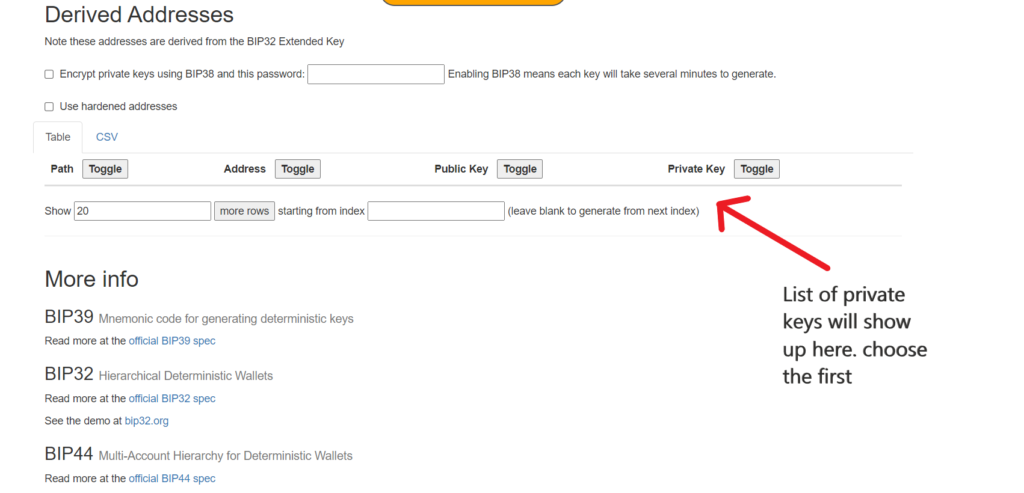
We suggest you run this tool offline and get your private key.
To run this tool offline, you can refer to this article .
Once you have found your Trust Wallet private key from the iancoleman.io BIP39 tool, you can follow the below steps to import your Trust Wallet to MetaMask:
1. Click Import Account on MetaMask
Launch your MetaMask wallet extension or mobile application.
Click/ tap on the profile icon on the top right to reach Import Account .
Now, you will be able to see Import Account .
Click/ tap on it.
2. Paste your Private Key
Now, paste your Trust Wallet private key that you have identified using the iancoleman.io BIP39 tool.
And click/ tap Import .

3. Switch between Trust Wallet Account and MetaMask Account
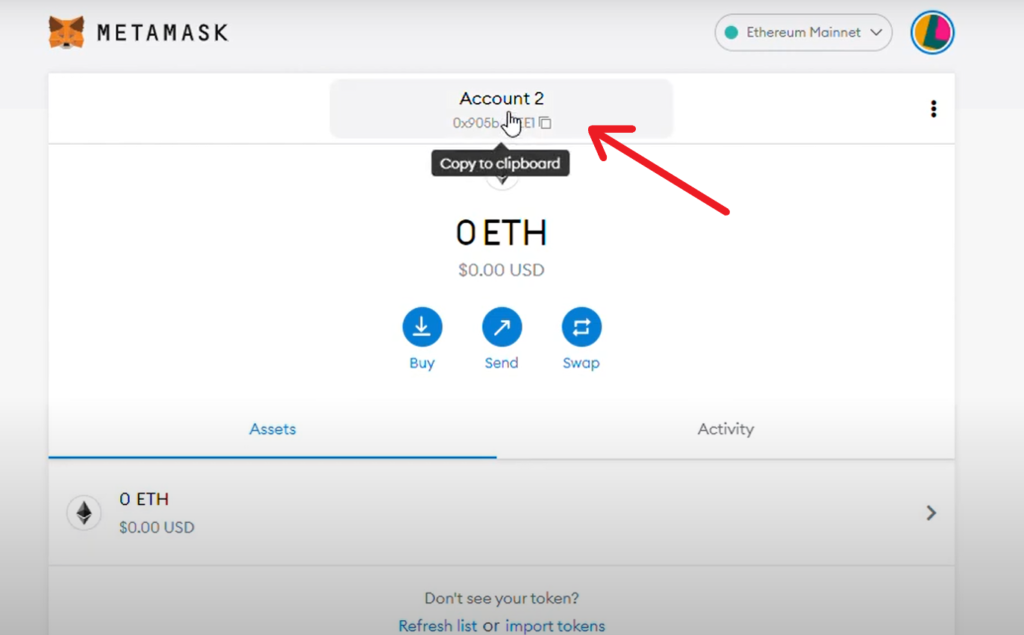
After clicking/ tapping the Import button, your Trust Wallet will be imported to your MetaMask.
You can identify this by seeing the account header and the address.
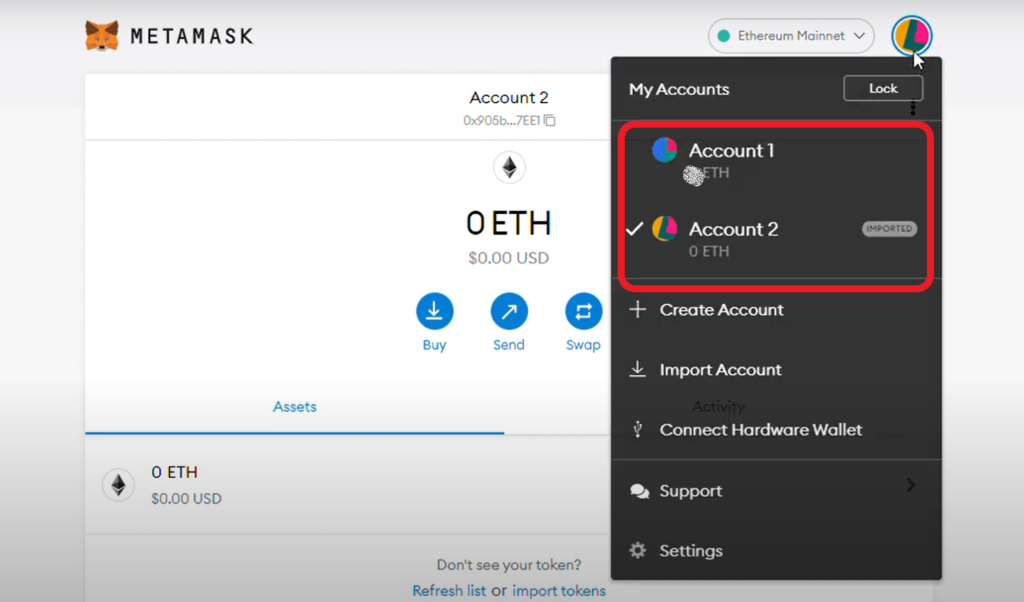
To switch between Trust Wallet and MetaMask accounts, click/ tap the profile icon on the top right and choose the accounts.
Conclusion
- Importing via Recvory Phrase/ Seed Phrase: It is a simple and safe way.
- Importing via Private Key: This is a bit complicated way. Also, it involves typing your Trust Wallet’s recover phrase in a third-party tool to find out the private key. Because the Trust Wallet doesn’t provide access to the private key. However, you can run the tool offline as mentioned above. Only use this method to recover the funds that are sent to the wrong public address.
FAQs
1. Can I import Trust Wallet to MetaMask?
Yes, you can import Trust Wallet to MetaMask via your recovery phrase. To import Trust Wallet to MetaMask, you need to copy-paste your Trust Wallet recovery phrase into MetaMask.
You can find your Trust Wallet recovery phrase by navigating to Settings . Then, tap on Wallets and tap on three vertical dots beside the account that you want to import.
Lastly, tap on Show Secret Phrase .
2. Is there a Trust Wallet extension?
There is no Trust Wallet browser extension available. Trust Wallet can be used on Android and iOS devices.
If you want to use Trust Wallet on a browser extension, you can do so by importing your Trust Wallet to MetaMask via recovery phrase.